 BLP Workbench
 Backups
Admin › Backup & Restore makes, keeps and restores backups of everything in BLP Workbench. A backup holds the whole database plus all uploaded files (logos, company and project files, quote PDFs), so restoring one brings back every record, user and setting exactly as it was.
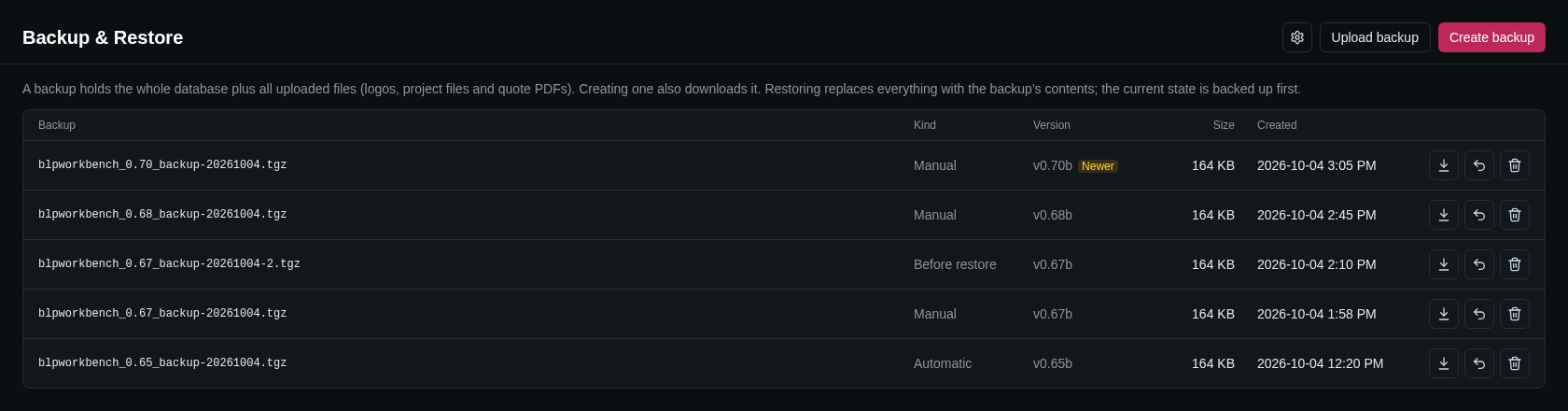
The backup list
Each backup shows its file name, Kind, the Version of BLP Workbench that made it, its Size and when it was Created. There are three kinds:
- Manual: made with Create backup, or uploaded.
- Automatic: made on the schedule set in Automatic backups.
- Before restore: a safety backup the app made by itself just before a restore or an update (see Safety backups).
The buttons on each row download, restore or delete that backup. Deleting removes the file permanently.
Making a backup
Click Create backup. The backup is made on the server, added to the list, and downloaded to your computer at the same time.
Backups are stored on the server, in the install's data folder. Keep a downloaded copy somewhere else as well (another computer, a USB drive or cloud storage), so you still have one if the server itself fails.
Automatic backups
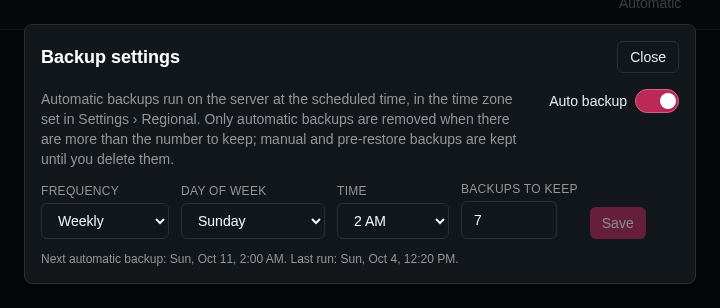
A new install backs up automatically from the start: weekly, on Sunday at 2 AM, keeping the newest 7 automatic backups. The first one runs at the first scheduled time after the install starts. To change this, click the gear button at the top of the page (or use the Backup settings card in Admin › Settings):
- Turn Auto backup on or off.
- Choose the Frequency: Daily, Weekly (pick the Day of week) or Monthly (pick the Day of month, 1–28).
- Choose the Time (the hour it runs). It follows the time zone set in Regional.
- Set Backups to keep. When there are more automatic backups than this, the oldest automatic ones are removed. Manual and Before restore backups are never removed automatically; they stay until you delete them.
- Click Save.
The card then shows when the next automatic backup will run and when the last one ran. Automatic backups run on the server, so nobody needs to be signed in.
Uploading a backup
To restore a backup that isn't in the list — for example one you downloaded earlier, or one from another BLP Workbench install — click Upload backup and choose the .tgz file. It's added to the list as a manual backup; uploading alone changes nothing. Then restore it as below.
Restoring a backup
Restoring replaces everything in the app — all records, users, settings and files — with the backup's contents.
- Click the restore button on the backup's row.
- Read the message, type RESTORE in the box, and click Restore.
- When it's done, the app says which safety backup holds the previous state. Everyone, including you, has to sign in again, with the accounts from the backup.
A backup made by an older version of BLP Workbench restores cleanly: the app brings its data up to date the same way an update does.
If anything goes wrong during a restore, the app puts the previous state back and says what failed, so a failed restore changes nothing.
Safety backups
Before every restore, the app saves the current state as a Before restore backup. If you restored the wrong backup, restore that one to go back.
The app also makes one before an update that changes the database, before applying the changes. If an update causes trouble, the person running the server can go back to the previous version and you restore that backup (see Going back to an older version).
Backups from a newer version
A backup made by a newer version of BLP Workbench than the one you're running is marked Newer in the Version column when that version changed how data is stored. (A backup from a newer version without such changes isn't marked and restores like any other.)
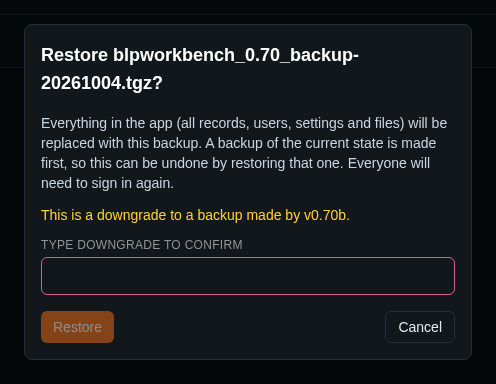
- Same major version (for example a v0.70b backup on v0.66b): restoring it is a downgrade. This version may not understand everything the newer one stored, which can cause errors or unexpected behavior. You're asked to confirm twice: first with Continue, then by typing DOWNGRADE instead of RESTORE. A safety backup is made first, as always.
- Newer major version (for example a v2 backup on v1): it can't be restored, and its restore button is disabled. Update BLP Workbench first, then restore it.
Restoring during first-run setup
A brand-new install can start from a backup instead of an empty app, for example when moving BLP Workbench to another server:
- On the welcome page of the new install, choose Restore a backup instead of Create my account.
- Choose a backup file made in BLP Workbench and click Restore.
- When it says Backup restored, click Sign in and sign in with one of the backup's accounts.
Backups from a newer version can't be restored here. Restore them later from Admin › Backup & Restore instead.
If the backup has no administrator account that can sign in here (for example, its only admin was the recovery admin of the old install), the page says so. Either click Create an administrator account, or have the recovery admin set up on this install and restart it.