 BLP Workbench
 Companies and contacts
Companies are the businesses and organizations you work for; contacts are the people. A contact can belong to several companies, and a company can have many contacts. Both live under CRM in the sidebar.
Companies
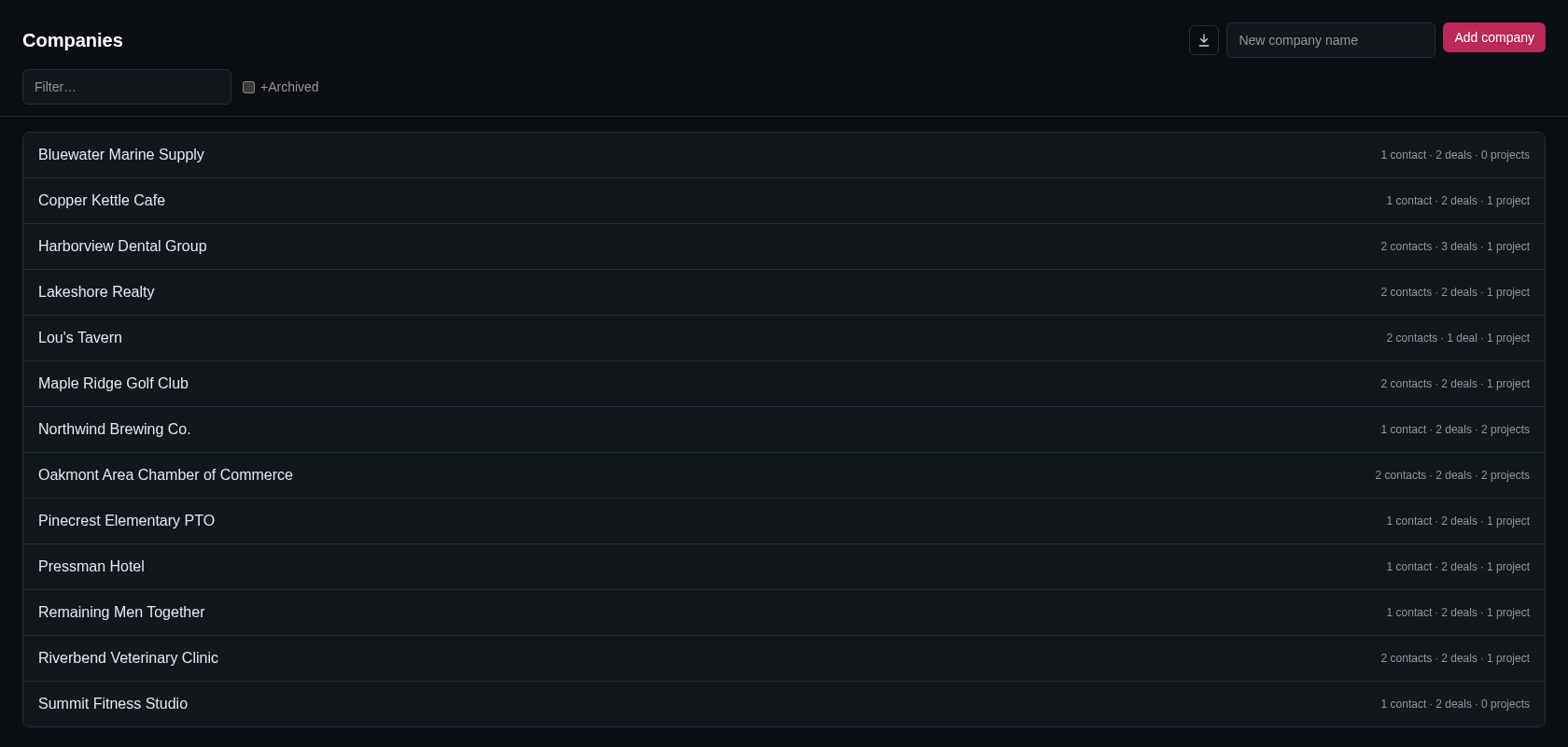
Open CRM › Companies to see every company in alphabetical order, with how many contacts, deals and projects each has.
- Filter… narrows the list by name or notes.
- +Archived also shows archived companies (greyed out).
- The Export to CSV button downloads the list as it's filtered, with more columns than the page shows (for example addresses and email domains).
Adding a company
Type the name in New company name and click Add company. The new company opens right away so you can fill in the rest. If you click Add company with the box empty, a New company dialog asks for the name.
You can also add a company on the spot while creating a deal or project. See Deals and quotes.
Company details
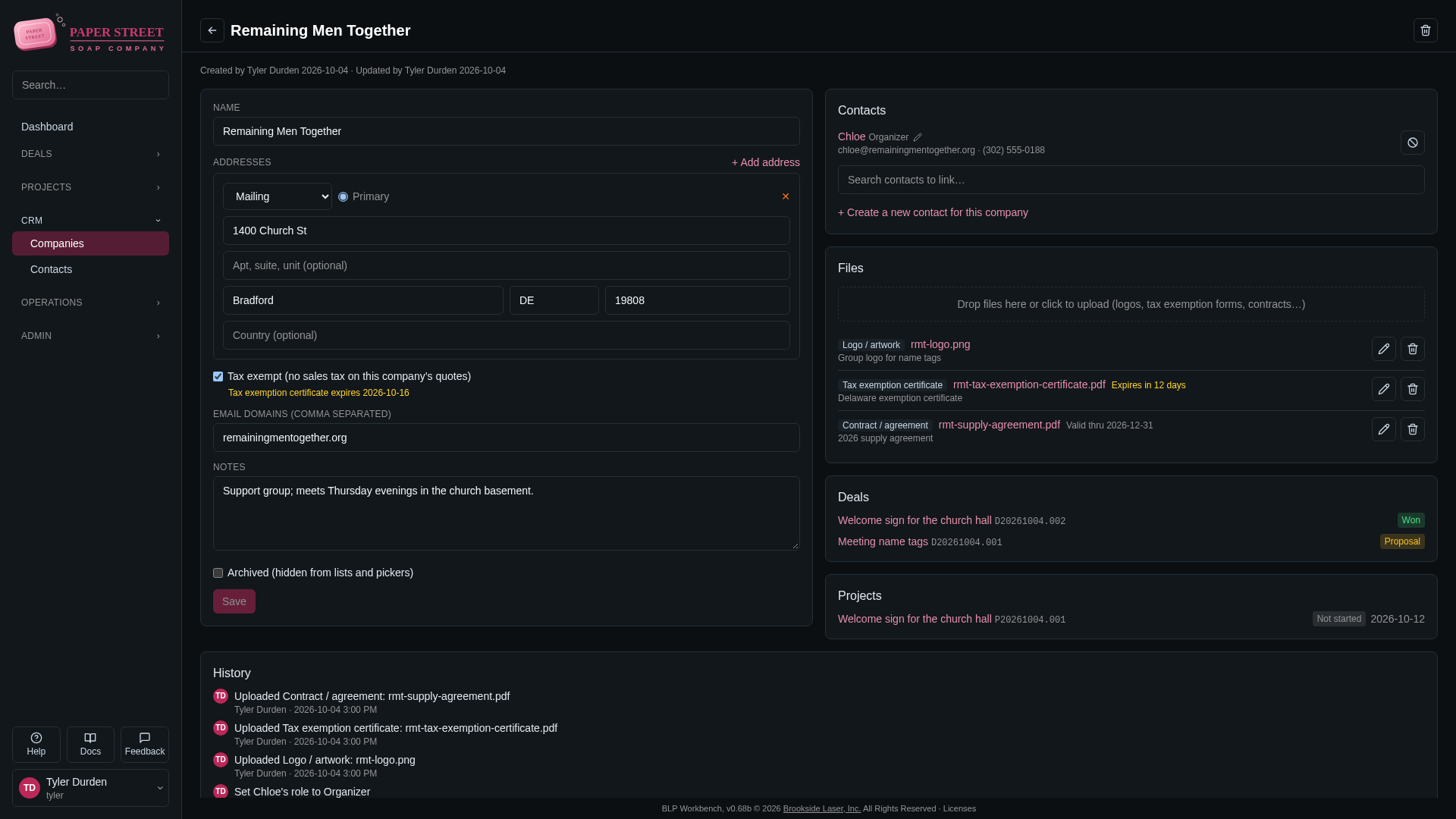
The left card on a company's page holds its details. Click Save when you're done; the button stays greyed out until you change something.
- Name.
- Addresses: see Addresses.
- Tax exempt (no sales tax on this company's quotes): quotes for this company don't charge sales tax. See Tax exemption certificates.
- Email domains (comma separated): the company's own email domains, such as
example.com. You can paste a web address or an email address; it's shortened to the domain. Each domain can belong to only one company. - Notes: anything worth remembering about the company.
- Archived (hidden from lists and pickers): for companies you no longer work with. Archived companies keep all their deals, projects and history, and you can still find them with +Archived.
The right side of the page shows the company's Contacts, Files, Deals (with their stage) and Projects (with their status and due date). Click any of them to open it.
Deleting a company
Only administrators can delete a company, with the trash button next to its name. The company is hidden everywhere, but its contacts, deals and links are kept, and an administrator can restore it from Admin › Maintenance. See Maintenance.
If you just want a company out of the way, use Archived instead.
Contacts
Open CRM › Contacts to see every contact with their first email address and phone number, and the companies they belong to.
- Filter… finds contacts by name, email address or phone number.
- +Archived also shows archived contacts.
- Export to CSV downloads the filtered list.
Adding a contact
Type the name in New contact name and click Add contact; the new contact opens right away. With the box empty, a New contact dialog asks for the name.
To add a contact straight to a company, open the company and click + Create a new contact for this company in its Contacts card. The dialog says which company the contact will be linked to.
Contact details
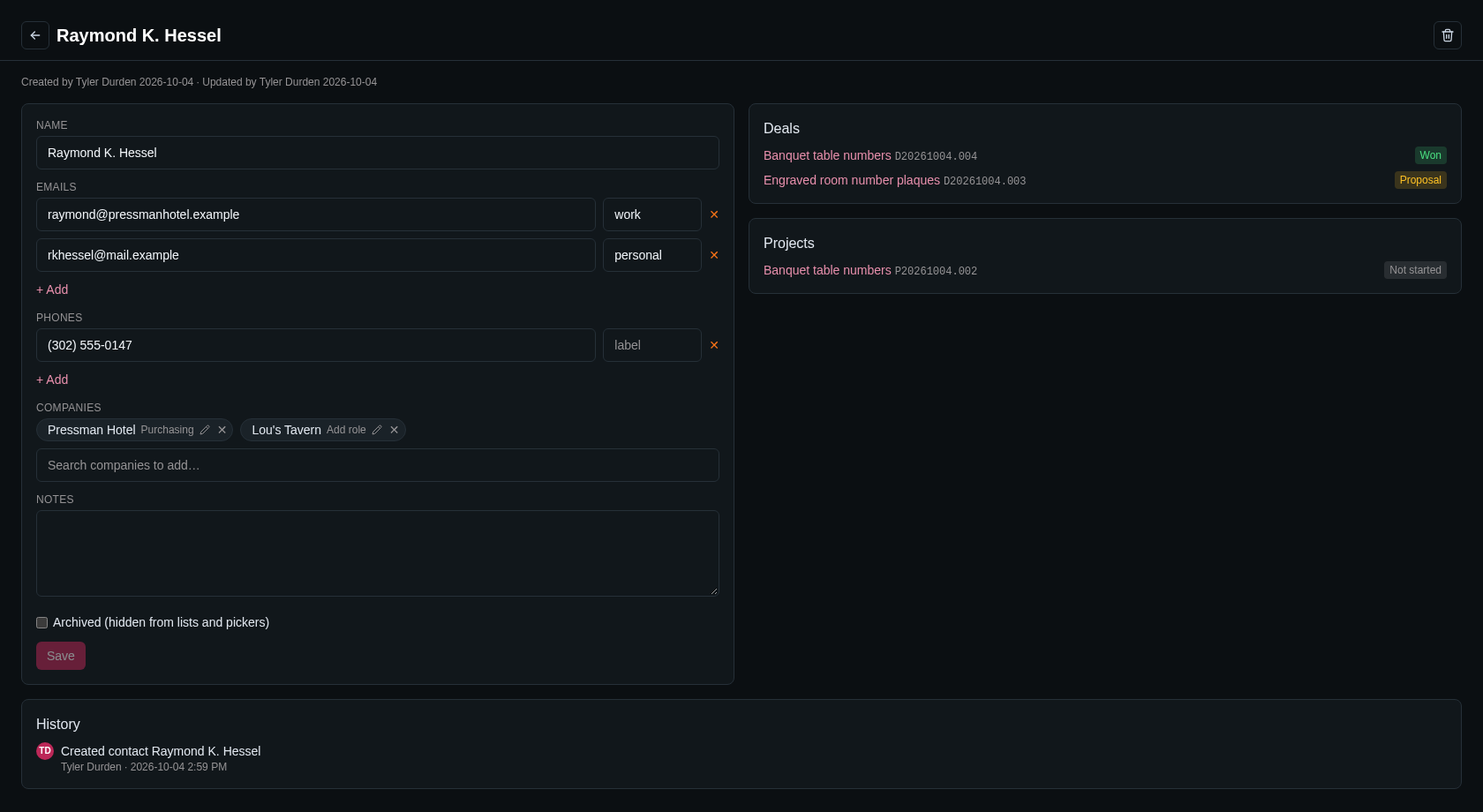
A contact's page has:
- Name.
- Emails and Phones: click + Add for another one. The small box next to each is an optional label such as "work" or "mobile". Remove one with ✕. See Phone numbers.
- Companies: the companies this contact belongs to. See Linking contacts and companies.
- Notes.
- Archived (hidden from lists and pickers).
Click Save to keep your changes. The right side lists the contact's Deals and Projects.
Deleting a contact
Only administrators can delete a contact, with the trash button next to the name. An administrator can restore it from Admin › Maintenance.
Linking contacts and companies
You can link a contact to a company from either side; both pages always agree.
- From the company: in the Contacts card, type in Search contacts to link… and pick the person. To unlink someone, click the unlink button at the end of their row. Unlinking doesn't delete the contact.
- From the contact: under Companies, type in Search companies to add… and pick the company, then click Save. Remove a company with the ✕ on its chip.
Roles
Each link can have a role or title, such as "Owner" or "Purchasing". Click Add role (or the current role) next to the contact's name on the company page, or on the company chip on the contact's page, type the role and press Enter. The role saves right away. Press Esc to cancel.
On a new contact, save the contact first; the role appears on the company chip after that.
Addresses
Companies, suppliers and vendors can have several addresses. Click + Add address for each one and fill in:
- the type: Mailing, Billing, Shipping or Other;
- Primary: the main address, for example the one shown on hover cards. Exactly one address is primary;
- Street address, Apt, suite, unit (optional), City, the region and postal code, and Country (optional).
The names of the region and postal code boxes follow the country set in Admin › Settings › Regional: for example State and ZIP code in the United States, Province and Postal code in Canada, or County and Postcode in the United Kingdom. Fill in Country only for addresses outside your own country.
An address without a street address is dropped when you save. Remove an address with its ✕ button.
Phone numbers
Phone numbers are tidied up when you leave the box, the way your country writes them (set in Admin › Settings › Regional). For example, in the US 6165550123 becomes (616) 555-0123.
For a number from another country, start it with + and the country code, such as +44 20 7946 0958; it keeps its country code. A number that can't be a real phone number is refused when you save, with a message saying which one.
Company files
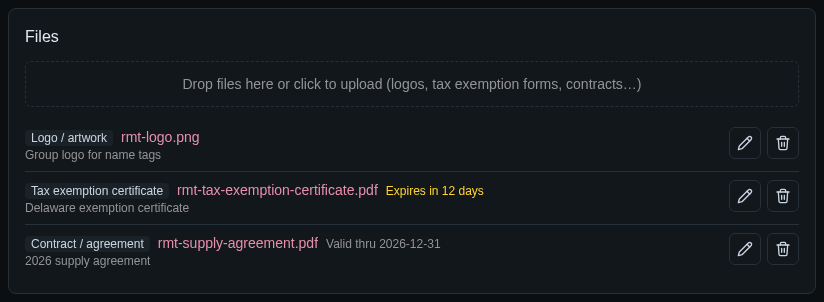
The Files card on a company's page keeps documents for that company: logos and artwork, tax exemption certificates, contracts and anything else.
Uploading files
Drop files onto the box that says Drop files here or click to upload, or click it to choose files. For each file, a dialog asks for:
- Kind: what sort of file it is. Image and artwork files start as Logo / artwork; others as Other.
- Description: an optional note, shown under the file name.
- Valid thru: for kinds that expire, the last day the document is valid. It's optional, except for tax exemption certificates.
Click Save to upload, or Cancel to skip that file. When you drop several files, the dialog comes up once for each. Files over the size limit or of a refused type (see Settings › Uploads) are left out with a message.
Files are listed grouped by kind. Click a file name to open or download it. Use the pencil button to change its kind, description or date.
Valid thru dates
Files with a valid-thru date show a badge:
- Valid thru and the date (grey): still valid.
- Expires in N days (amber): expires within 30 days.
- Expired and the date (red): no longer valid.
Deleting files
Anyone can delete a file with its trash button, except for kinds that only administrators may delete (by default tax exemption certificates and contracts). An administrator can restore deleted files from Admin › Maintenance.
File kinds
Administrators set the kinds in Admin › Settings › Company files. Out of the box there are Logo / artwork, Tax exemption certificate, Contract / agreement and Other. For each kind you can choose:
- Expires: files of this kind get a valid-thru date.
- Admins delete: only administrators can delete files of this kind.
- Tax exemption: this kind is the tax exemption certificate (one kind at most).
Rename kinds, add new ones with + Add kind, or remove them with ✕, then click Save. See Settings.
Tax exemption certificates
When a company is marked Tax exempt, BLP Workbench checks that it has a current tax exemption certificate in its Files. If the certificate is missing, expired or expiring soon, a warning appears:
- under the Tax exempt checkbox on the company page;
- on the company's hover card;
- in the quote editor on the company's deals.
The Dashboard also lists tax-exempt companies whose certificate is missing or expiring. Upload a new certificate with its Valid thru date to clear the warning.
Hover cards
On the deal and project boards and lists, point at a company or contact name to see a summary card: the company's primary address, tax-exempt status, email domains and contacts with their roles, or the contact's companies, emails and phones, along with recent deals and projects.
History
The line under a company's or contact's name shows who created it and who last changed it, and when. The History card at the bottom of the page lists every change, newest first, with who made it and when.
Administrators can see changes across the whole app in Admin › Activity. See Maintenance and activity.
Search
The Search… box at the top of the sidebar finds companies by name and contacts by name or email address, along with deals, projects and more. Press Enter to see the results. See Search.
On the Companies and Contacts pages, the Filter… box narrows the list as you type.