 BLP Workbench
 Suppliers and vendors
Suppliers and vendors are the outside companies your shop buys from. They're kept apart from your customers and from each other, each with its own contacts, addresses and account details.
Suppliers or vendors?
- Suppliers provide the materials and stock you use to make or supply your products, such as blanks, sheet stock or finished goods you resell. Products, quote lines, stock deliveries and purchase orders can name the supplier.
- Vendors are behind your equipment, contracts and support, such as the laser's manufacturer, a service company or your software provider. Vendors are a directory only; they aren't linked to products or quotes.
If a company is both, add it to each list.
Turning them on
Suppliers and Vendors are separate modules, each with its own switch in Admin › Modules. When a module is on, its list appears under Operations in the sidebar. Turning one off hides it everywhere but keeps its data, so turning it back on brings everything back.
The list
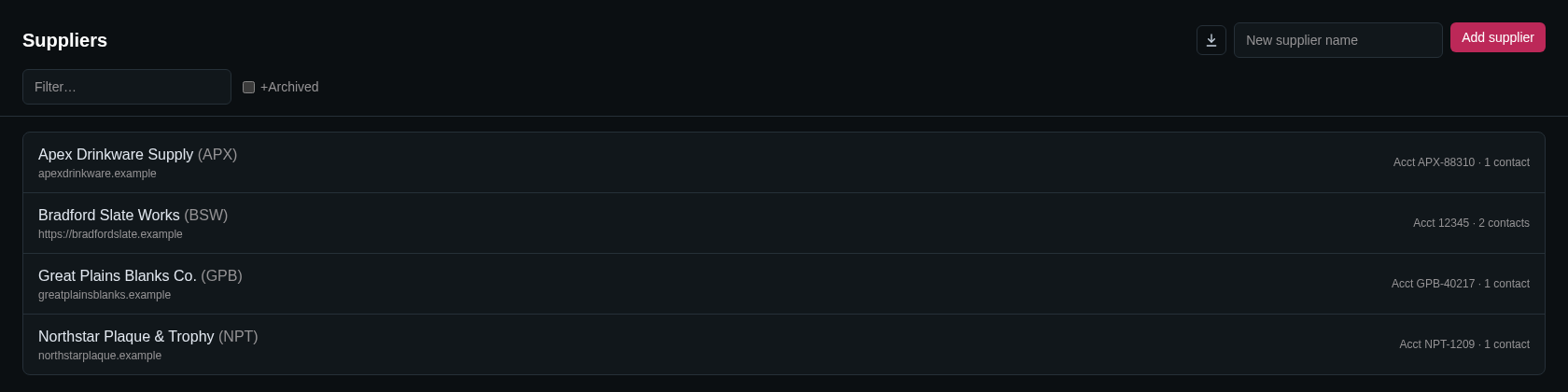
Open Operations › Suppliers or Operations › Vendors. Each row shows the name, nickname and website, the account number and how many contacts there are.
- Filter… finds entries by name, nickname, website, account number or contact name.
- +Archived also shows archived entries.
- Export to CSV downloads the filtered list.
To add one, type the name in the box next to Add supplier (or Add vendor) and click the button. The new entry opens right away. With the box empty, a dialog asks for the name.
Details
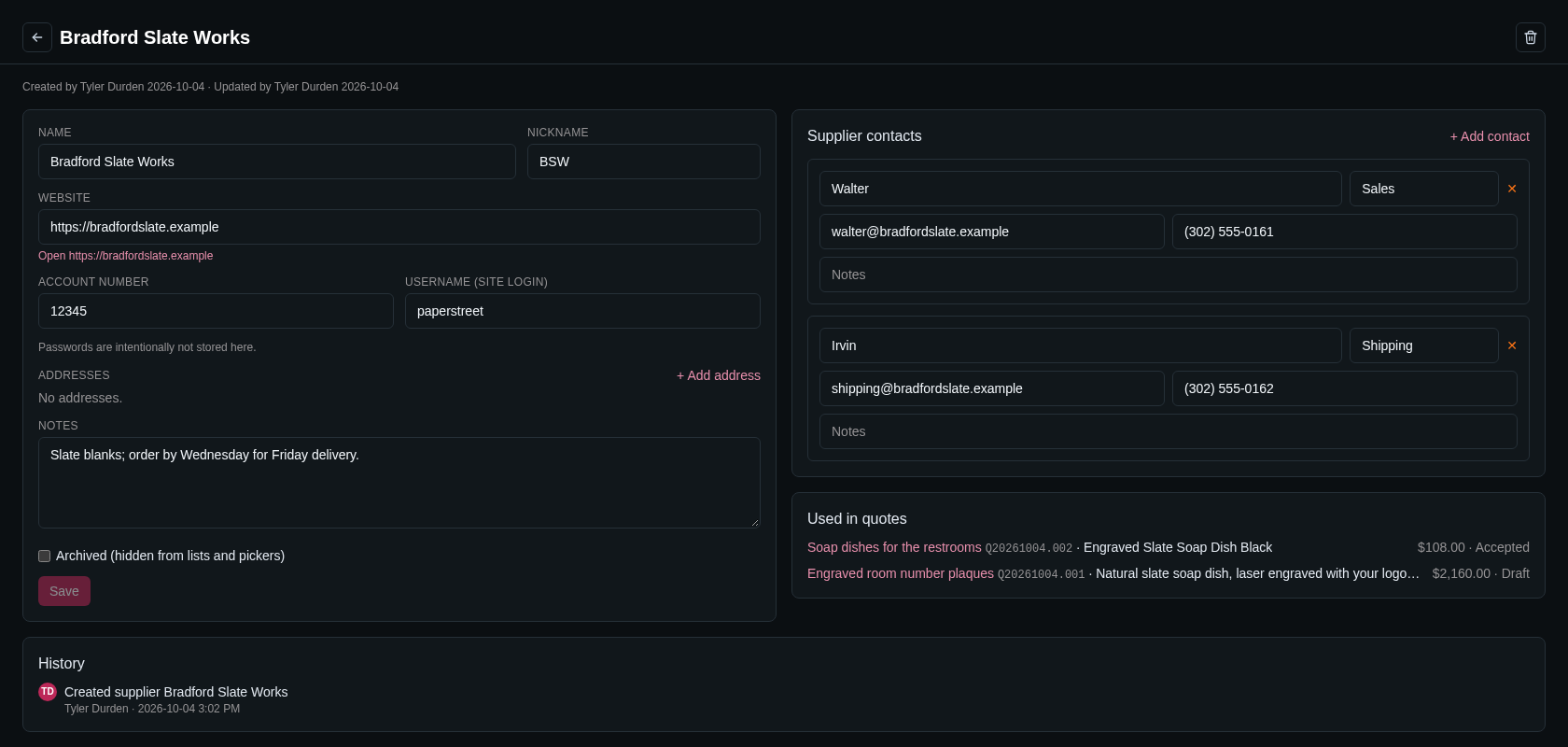
A supplier's or vendor's page has:
- Name and Nickname: a short name such as "JDS". Where suppliers are picked or shown, the nickname is shown with the name, and you can search by it.
- Website: once saved, an Open link below it opens the site.
- Account number: your customer number with them. On a printed purchase order it appears as "Our account".
- Username (site login): the user name for their website. Passwords are intentionally not stored in BLP Workbench.
- Addresses: one or more, with a type and a primary address. See Addresses. The primary address is printed on purchase orders.
- Notes.
- Archived (hidden from lists and pickers): for companies you no longer use.
Click Save to keep your changes.
Their contacts
The Supplier contacts (or Vendor contacts) card lists the people you deal with there. Click + Add contact and fill in Name, Role, Email, Phone and Notes. Phone numbers are tidied up the same way as for your own contacts; see Phone numbers. Remove a contact with ✕.
Contact changes are saved with the page's Save button.
These contacts belong only to the supplier or vendor; they don't appear under CRM › Contacts.
Where suppliers are used
- Products & Services: an item's Internal card has a Supplier and Supplier part # (variants can have their own part numbers). See Internal.
- Quotes: each quote line's internal details can name a supplier, filled in from the item. A supplier's page lists these lines in Used in quotes, with the deal, quote, amount and quote status.
- Inventory: receiving stock records the supplier, and the Low Stock card shows who to reorder from. See Receiving stock.
- Purchase orders: each order is for one supplier, and Add to PO puts items on their supplier's draft order. See Purchase orders.
Deleting
Only administrators can delete a supplier or vendor, with the trash button next to its name. It's hidden everywhere, including quote lines that name the supplier, and an administrator can restore it from Admin › Maintenance. See Maintenance.
To stop using one without deleting it, check Archived.
History
The line under the name shows who created the entry and who last changed it. The History card at the bottom of the page lists every change.