BLP Workbench
 Projects
A project is a job you're doing for a customer. Most projects come from won deals; you can also create one directly. Track its status, time, files, notes and where its materials are kept.
The projects board
To open the board, choose Projects › Active in the sidebar. Each column is a project status, and each card is a project. A card shows the title, company or contact, reference, due date (highlighted when overdue), priority and the initials of the person it's assigned to.
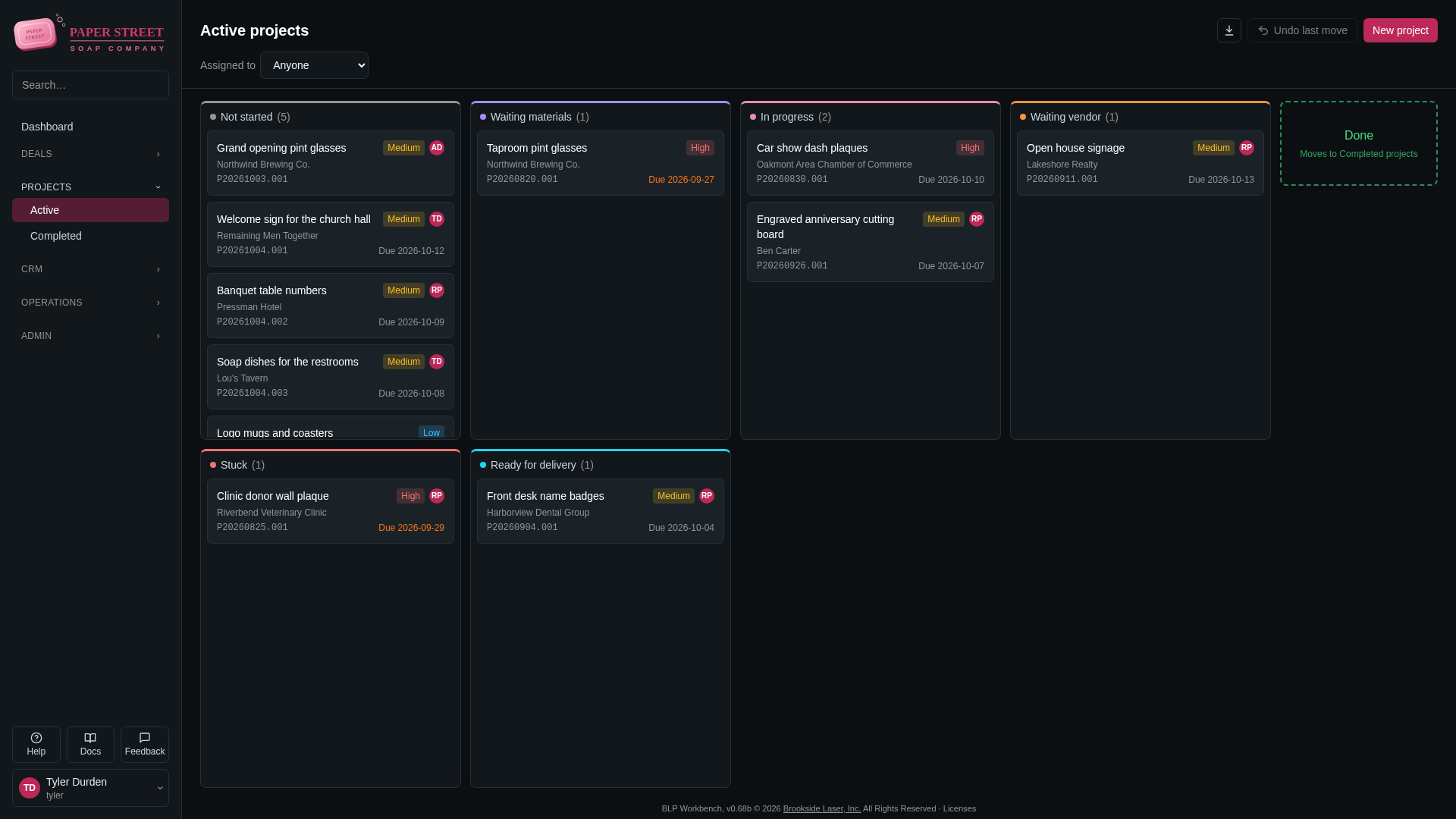
- To open a project, click its title or double-click the card.
- To see only some projects, use Assigned to above the board: Anyone, Me or a person.
- Export to CSV in the header downloads the projects the board shows.
Statuses and priorities
The board's columns are the project statuses, and every project has a priority shown as a colored label on its card. New projects start in the first status and get the default priority.
Administrators set the statuses and priorities, their order, names and colors in Admin › Settings › Deals & projects; see Settings. The Done status is always there; it can be renamed and recolored but not removed.
Creating a project
When a deal is won, its project is created for you with the deal's details and accepted quote. See Winning a deal.
To create a project without a deal:
- On the projects board, click New project.
- Enter the Title and choose the company and contact.
- Optionally set Priority, Due date, Assigned to and Description.
- Click Create project. The project's page opens.
Moving projects
To change a project's status, drag its card to another column. You can also drag a card up or down to change its place within a column. On the project's page, you can choose a status from the list next to the title.
When a project is finished, drag its card onto Done on the right of the board. It moves to the completed list.
Undo last move in the header moves the last card you moved back where it was, after asking.
Completed projects
Choose Projects › Completed in the sidebar to see finished projects, newest first, with the completion date and total hours logged. Use Filter… to narrow the list and Export to CSV to download it.
To reopen a project, click Reopen (the curved arrow) on its row. It goes back to the status it had before it was done.
The project page
The project page shows the reference and status in the header, the company and contact, the deal it came from, and who created and last changed it.
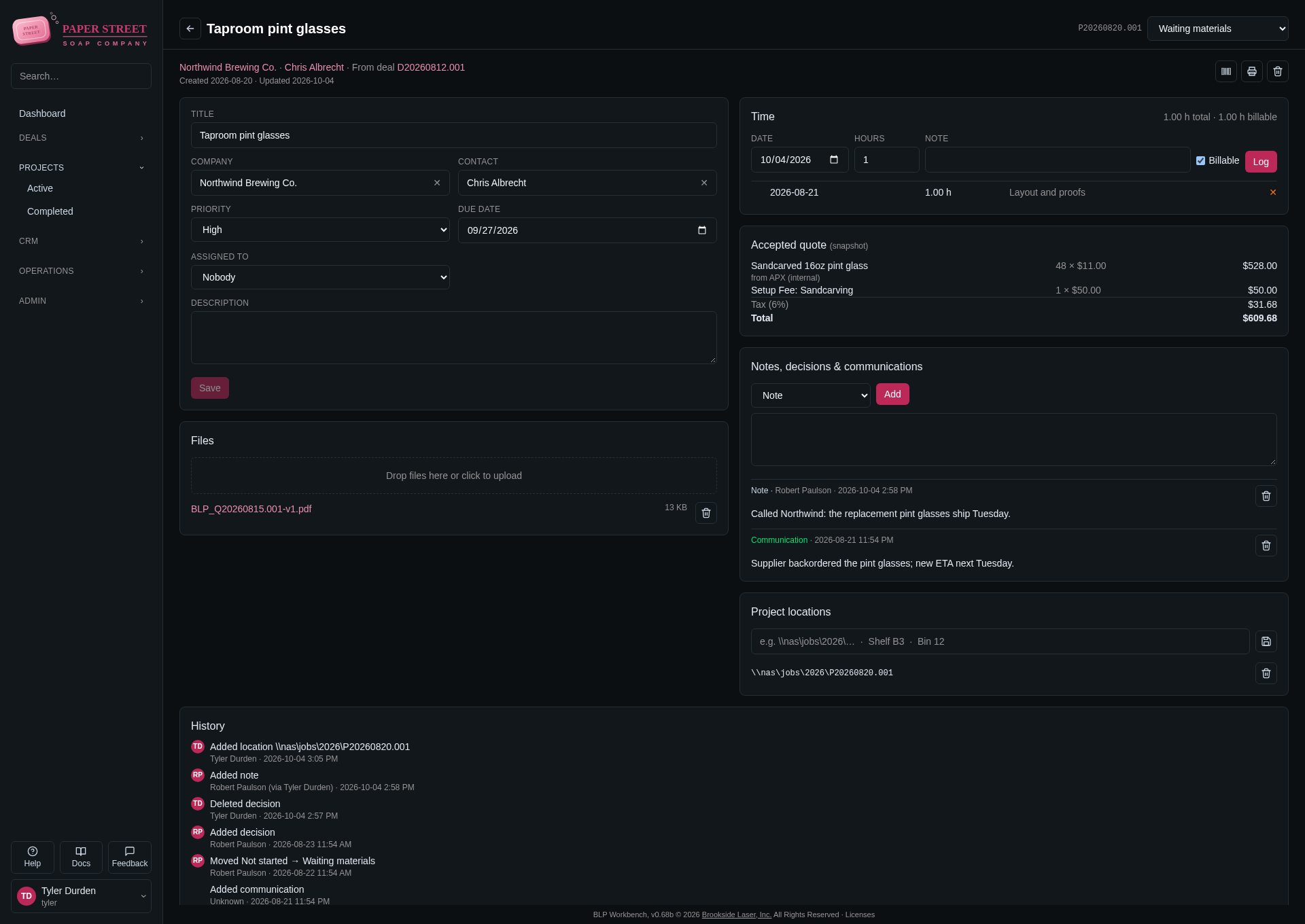
- Details card: edit the Title, company and contact, Priority, Due date, Assigned to and Description, then click Save.
- Accepted quote (snapshot): the quote as it was accepted when the deal was won (with the Quotes module turned on). Internal supplier names are marked as internal.
- Notes, decisions & communications: choose Note, Decision or Communication, type the text and click Add. Each entry shows who wrote it and when. The trash can removes an entry.
- Project locations: where the job's files and materials are kept, for example a network folder, a shelf or a bin. Type it and click the save button. Click a location to select it for copying.
- History: every change to the project, who made it and when.
Deleting a project is admin-only: the trash can button at the top right of the page. It hides the project with its notes, files and time. An administrator can restore it from Admin › Maintenance, and winning its deal again also brings it back.
Assigning projects
Every project can be assigned to one person; their initials appear on the card. New projects are assigned to whoever creates them, and a project from a won deal keeps the deal's assignee. To change it, pick a person (or Nobody) in Assigned to on the project page and click Save.
Time
Log time spent on a project in the Time card:
- Set the Date (today by default).
- Enter the Hours in quarter-hour steps (0.25, 0.5, 0.75, 1, …).
- Optionally add a Note, and untick Billable for time you won't charge.
- Click Log.
The card shows the total hours and the billable hours. Each entry shows who logged it; click ✕ to remove one.
Files
Drop files onto the Files card, or click it to choose files to upload (up to the size set in Settings › Uploads; programs and scripts such as .exe files are refused). A project from a won deal already has its accepted quote's PDF here. Click a file name to open it; the trash can removes it.
Printing
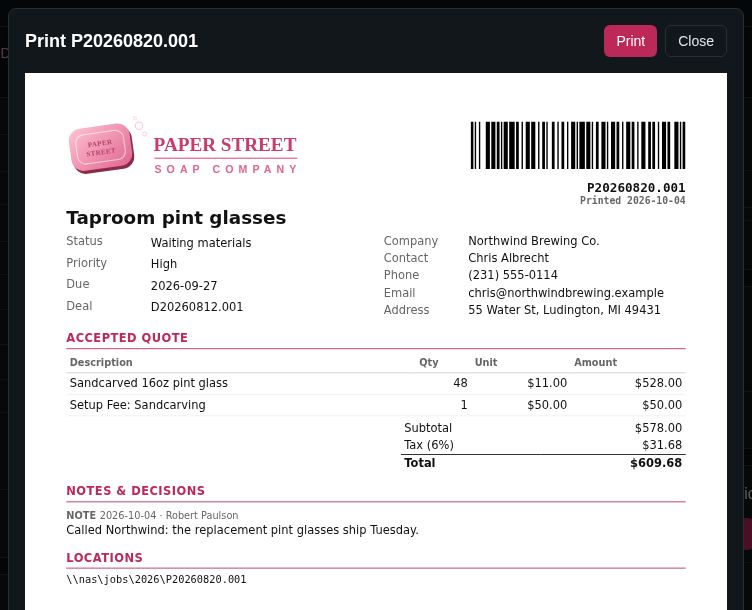
- Print project sheet (the printer button at the top right of the page): previews a sheet with the project's details, accepted quote, notes and locations, on the paper size set in Admin › Settings › Regional. The sheet runs onto extra pages when needed, and has a QR code that opens the project in BLP Workbench. Click Print.
- Print bar code label (with the Bar Codes module): prints a label for the project, for example for a bin or a job bag.