 BLP Workbench
 Getting started
BLP Workbench keeps your shop's customers, deals, quotes, projects and stock in one place. This page explains how to sign in and find your way around.
Signing in
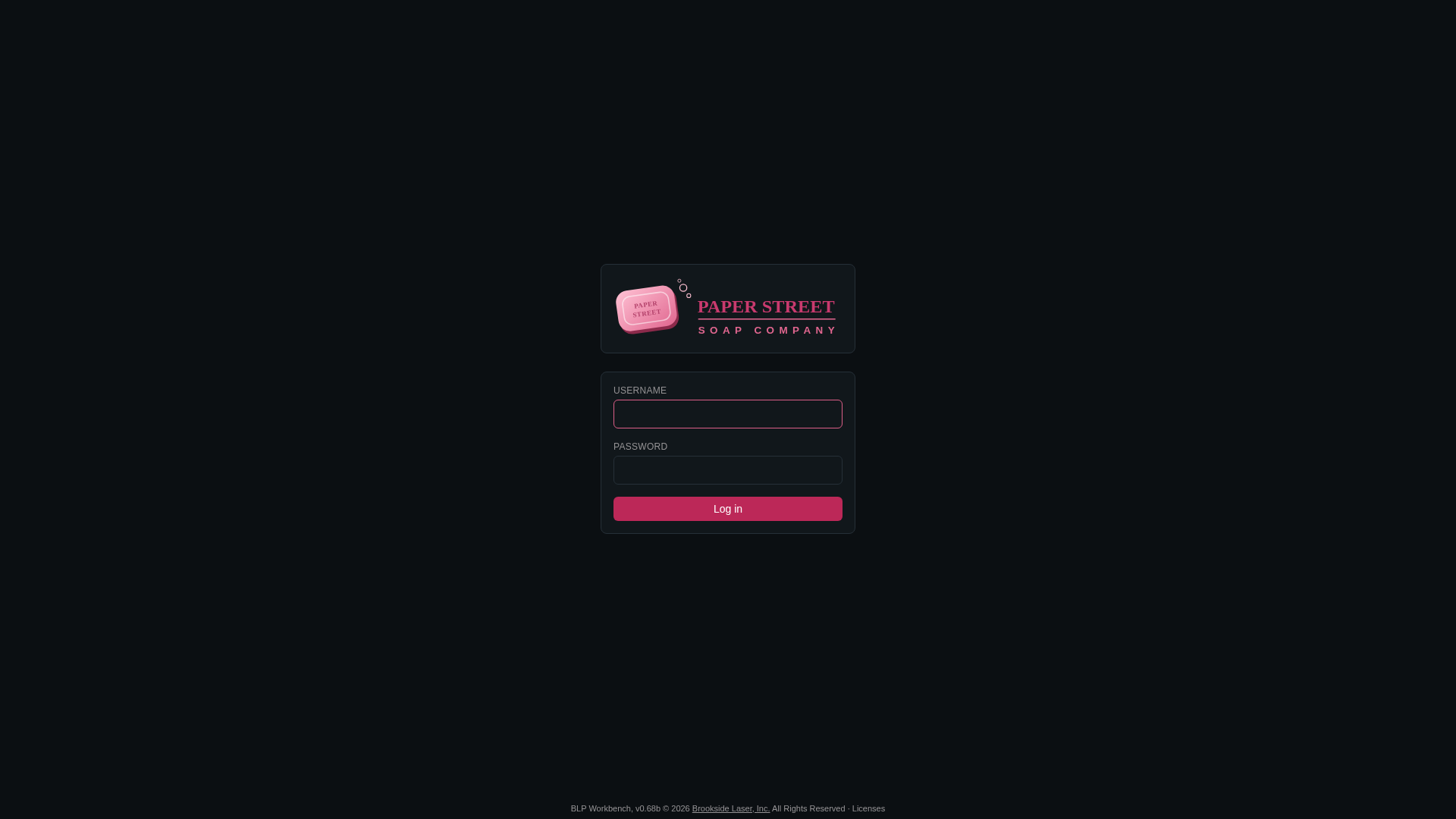
Open BLP Workbench in your browser and enter the Username and Password your administrator gave you, then click Log in. You stay signed in until you log out, or until you haven't used the app for a while (two weeks unless your administrator set another time in Settings › Security).
After several wrong passwords in a row, the account waits 15 minutes before it accepts another try. An administrator can set a new password meanwhile.
If the page says "BLP Workbench is still starting. Please wait.", the app was just started or updated. Wait a few seconds; the page continues by itself.
The layout
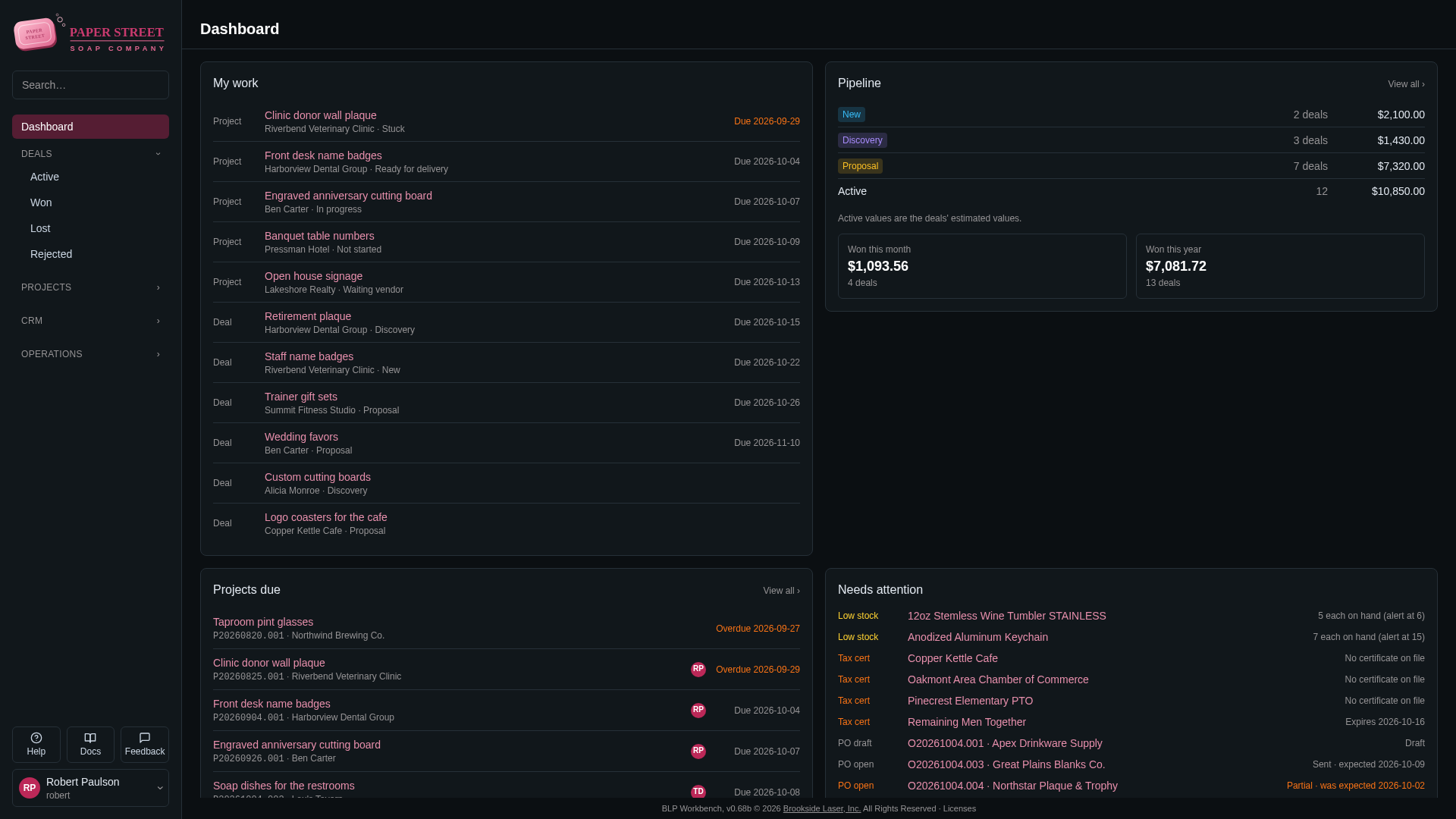
The sidebar on the left holds everything you can open. The page you're on fills the rest of the window.
Sidebar groups
From top to bottom:
- Dashboard: your home page. See Dashboard.
- Deals: Active (the deals board) and the lists of won, lost and rejected deals. See Deals and quotes.
- Projects: Active (the projects board) and Completed. See Projects.
- CRM: Companies and Contacts. See Companies and contacts.
- Operations: Products & Services, Inventory, Suppliers and Vendors, depending on which modules your administrator turned on. When items are low on stock, a number next to Inventory shows how many.
- Admin (administrators only): Settings, Modules, Users, Activity, Backup & Restore and Maintenance.
Groups fold away to keep the sidebar short. The group of the page you're on stays open; point at another group to open it.
Search
Type in the Search… box at the top of the sidebar and press Enter. The results page lists matching companies, contacts (also by email address), deals and projects (by title or reference), products and services (by name, SKU or reference), suppliers and vendors.
Searching for a reference such as D20261001.0A7 is the quickest way to open a record someone mentions. See References.
Help, Docs and Feedback
At the bottom of the sidebar:
- Help (or the F1 key) shows help about the page you're on in a popup, so you can read it without leaving what you're doing. Links in it open other help sections in the same popup; Open in Docs opens the whole page in a new tab.
- Docs opens all the help pages. Use Find in docs… to search them. The same help is online at docs.blpworkbench.com, for each version of BLP Workbench, so you can read it on another device or share a link to it.
- Feedback lets you send a question, problem or idea to the makers of BLP Workbench. See Sending feedback.
Your profile and password
Your name and username are shown on the card at the bottom of the sidebar. Click it to open a small menu:
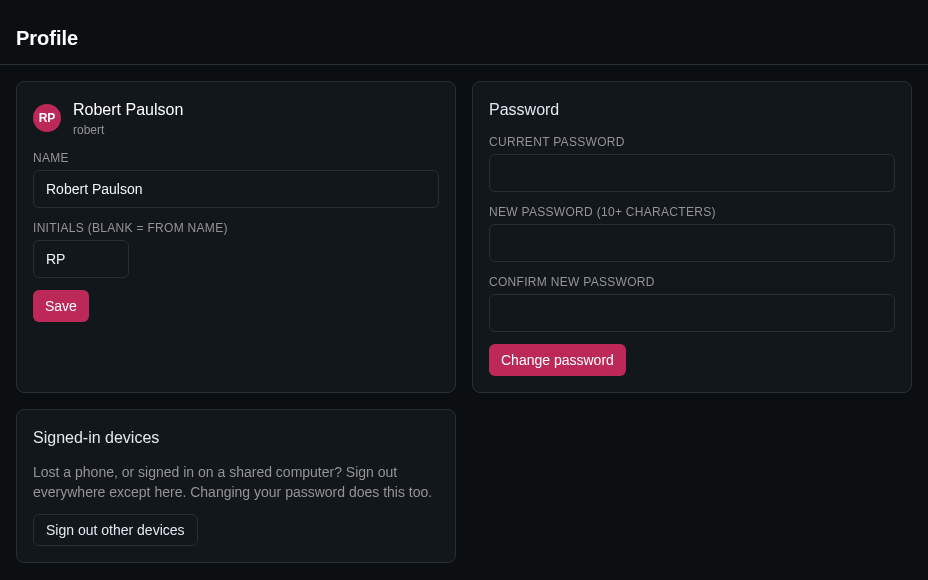
- Profile: change your Name and Initials (shown on board cards and in history; leave blank to use your name's initials), then click Save.
- Log out: sign out of BLP Workbench.
To change your password, open Profile, fill in Current password, New password and Confirm new password, then click Change password. The new password needs at least the number of characters shown (set by your administrator; 10 unless changed), can't contain your username, and can't be a commonly used password such as password123. Changing it signs you out on your other devices.
Signed-in devices
Lost a phone, or signed in on a shared computer? On Profile, click Sign out other devices: every other computer, phone or tablet is signed out, and you stay signed in where you are.
If you forgot your password, ask an administrator to set a new one. See Users.
Two-factor sign-in
With two-factor sign-in on, signing in needs your password and a 6-digit code from an authenticator app on your phone (such as Google Authenticator, Microsoft Authenticator, 1Password or Authy), so a stolen password alone isn't enough.
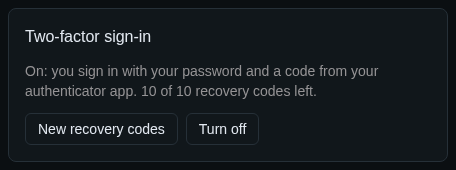
To turn it on, open Profile and click Turn on on the Two-factor sign-in card:
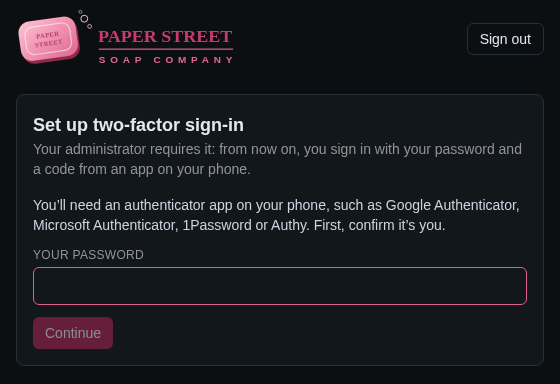
- Enter your password and click Continue.
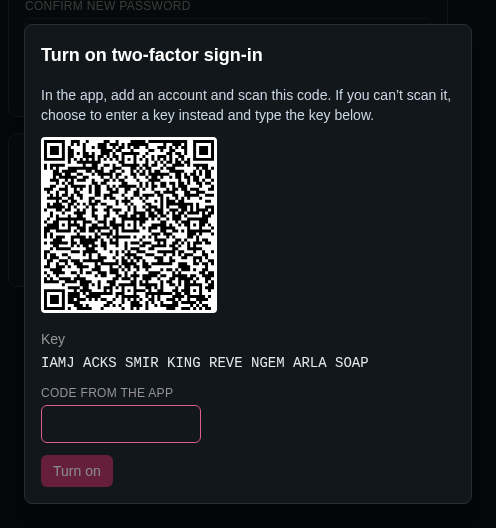
- In the authenticator app, add an account and scan the QR code. If you can't scan it, choose to enter a key in the app and type the Key shown.
- Type the 6-digit code the app shows and click Turn on.
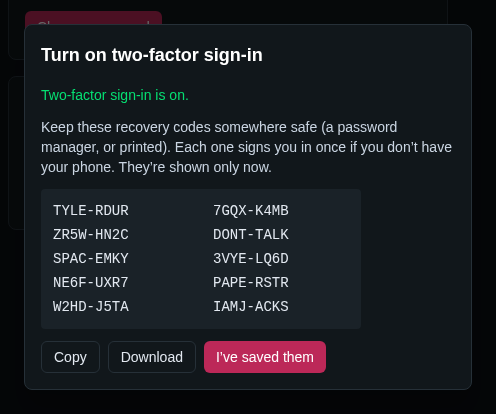
- Save the ten recovery codes (Copy or Download) somewhere safe, such as a password manager, then click I've saved them. Each code signs you in once if you don't have your phone. They're shown only this once.
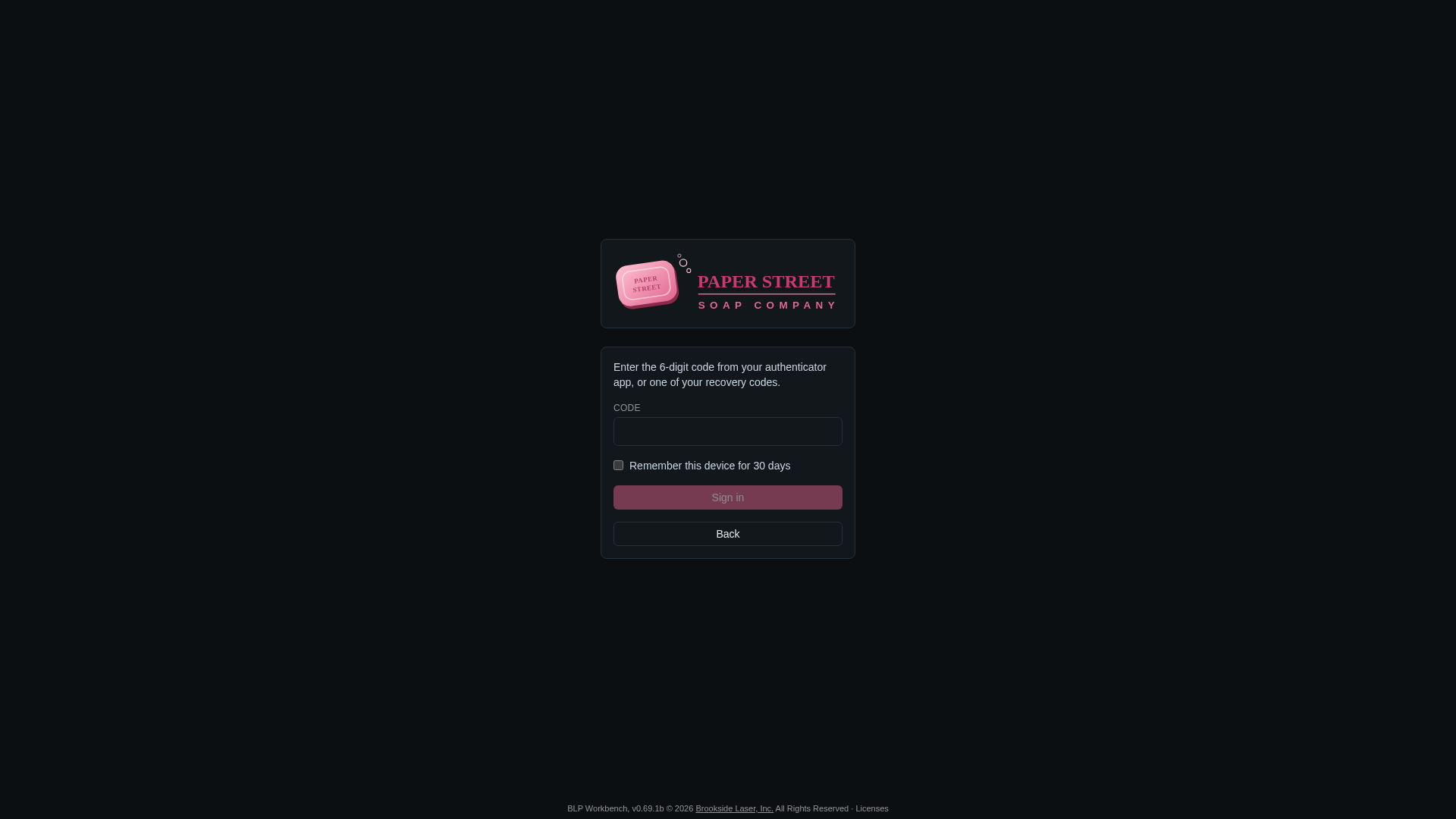
Turning it on signs you out on your other devices. From then on, after your password you're asked for a code: type the one your app shows now, or a recovery code. Tick Remember this device for 30 days on your own computer to skip the code there; changing your password or Sign out other devices forgets remembered devices.
- New recovery codes: makes a new set (after your password); the old codes stop working. The card shows how many are left.
- Turn off: back to signing in with your password only. It's not offered when your administrator requires two-factor sign-in.
- Lost your phone? Sign in with a recovery code, or ask an administrator to reset two-factor sign-in for you (see Users), then set it up again.
When an administrator requires it and you haven't set it up yet, you're asked to right after signing in, before you can use the app.
Impersonation (admins)
Administrators can see the app as another user, for example to check what that person sees. In Admin › Users, click the impersonate button on that user's row. While impersonating, the user card at the bottom of the sidebar glows amber and reads "Impersonating", and changes you make are recorded as made by that user via you.
To go back to your own account, click the user card and choose Stop impersonating. See Users.
What's new
The footer at the bottom of every page shows the version, for example v0.66b. Click the version to open the changelog, which lists what changed in each version, newest first. Licenses in the footer lists the open-source packages BLP Workbench includes.
Page not found
If you open an address BLP Workbench has no page for, for example a mistyped or old link, you see Page not found with a button back to the Dashboard. You also see it for pages in a module that's turned off, and for administrator pages when you aren't an administrator.
If you open a record that doesn't exist any more, for example a link to a deal someone deleted, the page says so (Deal not found) with a button back to its list. Administrators can restore deleted records in Admin › Maintenance. Files and PDFs opened from an old link show a similar page instead of an error.
Buttons and dialogs
- Icon buttons: small square buttons show an icon instead of a word (for example the trash can to delete, the arrow to go back, the printer to print). Point at one to see what it does.
- Back: detail pages have a back arrow left of the title. It returns to the list you came from, with your filters kept.
- Export to CSV: lists have an export button in their header. The file holds the rows the list shows with its current filters.
- Save: on pages and cards with a Save button, it switches on and glows softly once you've changed something, so you can see there are unsaved changes.
- Dialogs: forms such as New deal open in a dialog over the page. Press Escape or click Cancel to close one without saving. Dialogs with forms ignore clicks outside them, so a stray click doesn't lose what you typed.
- Confirmations: deleting or closing something asks first. Red buttons mean the action deletes something.
- Hover cards: point at a company or contact name in lists to see a summary card with recent deals and projects.
- Deleting: you can remove notes, files, time entries, locations and quotes inside a record. Deleting whole records (companies, contacts, deals, projects, products and services, suppliers and vendors) is admin-only. Deleted items can be restored by an administrator from Admin › Maintenance. See Maintenance and activity.
- History: most records show a History card listing every change, who made it and when.