 BLP Workbench
 Deals and quotes
A deal is a possible job, from the first inquiry until it is won, lost or rejected. Each deal can have quotes, and winning a deal turns it into a project.
The deals board
To open the board, choose Deals › Active in the sidebar. Each column is a deal stage, and each card is a deal. A card shows the deal's title, company or contact, reference, due date, estimated value and the initials of the person it's assigned to.
Cards in a column are sorted by due date (soonest first), then newest.
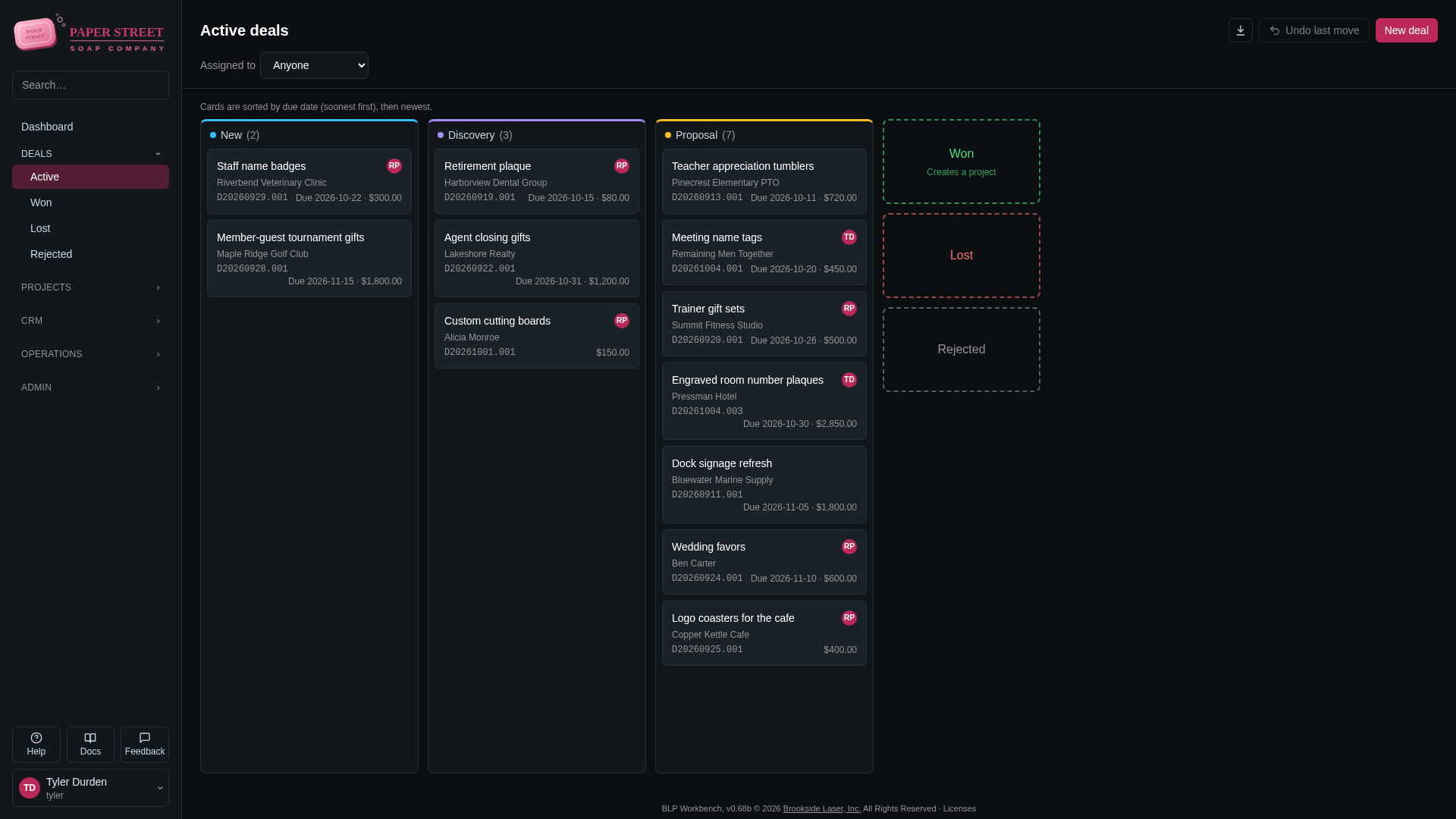
- To open a deal, click its title or double-click the card.
- To see only some deals, use Assigned to above the board: Anyone, Me or a person.
- Export to CSV in the header downloads the deals the board shows.
Stages
The board's columns are the deal stages. New deals start in the first stage. Administrators set the stages, their order, names and colors in Admin › Settings › Deals & projects; see Settings.
Three closing stages are always there: Won, Lost and Rejected. They can be renamed and recolored but not removed. Closed deals leave the board and go to their own list.
Creating a deal
- On the deals board, click New deal.
- Enter a short title in Deal (e.g. Nametags).
- Choose the company and contact. Choosing a company lists only its contacts, and choosing a contact lists only their companies; when there's just one, it's filled in for you. Use + Add new company or + Add new contact at the top of a list to add one on the spot.
- Optionally fill in Source (phone, email…), Due date, Estimated value (private), Assigned to and Description.
- Click Create deal.
The estimated value is for your own pipeline figures; it never appears on quotes.
Moving deals
To move a deal to another stage, drag its card to that column. On the deal's page, you can also choose a stage from the list next to the title.
To close a deal, drag its card onto Won, Lost or Rejected on the right of the board. BLP Workbench asks you to confirm:
- Won creates a project for the deal (see Winning a deal).
- Lost and Rejected let you enter a Reason (optional), shown in the closed list and on the deal.
Made a mistake? Undo last move in the header moves the last card you moved back where it was, after asking. Undoing a win keeps the project that was created.
Winning a deal
A deal needs a company or contact before it can be marked as won. Winning a deal:
- creates a project with the deal's title, description, due date, company, contact and assignee;
- marks the deal's quote as accepted (the accepted one, or else its latest quote) and copies it into the project, with its PDF in the project's Files;
- shows "Deal won — project created." with an Open project link.
If the deal already had a project (for example it was reopened and won again), that project is used again, and restored if it had been deleted.
If your administrator turned on Deduct stock when a deal is won (in Admin › Settings › Inventory), winning also takes the accepted quote's stock-tracked products out of stock, and reopening the deal puts them back. A message lists what was taken out. Products with variants are only taken out when the variant was chosen on the quote. See Inventory.
Won, lost and rejected deals
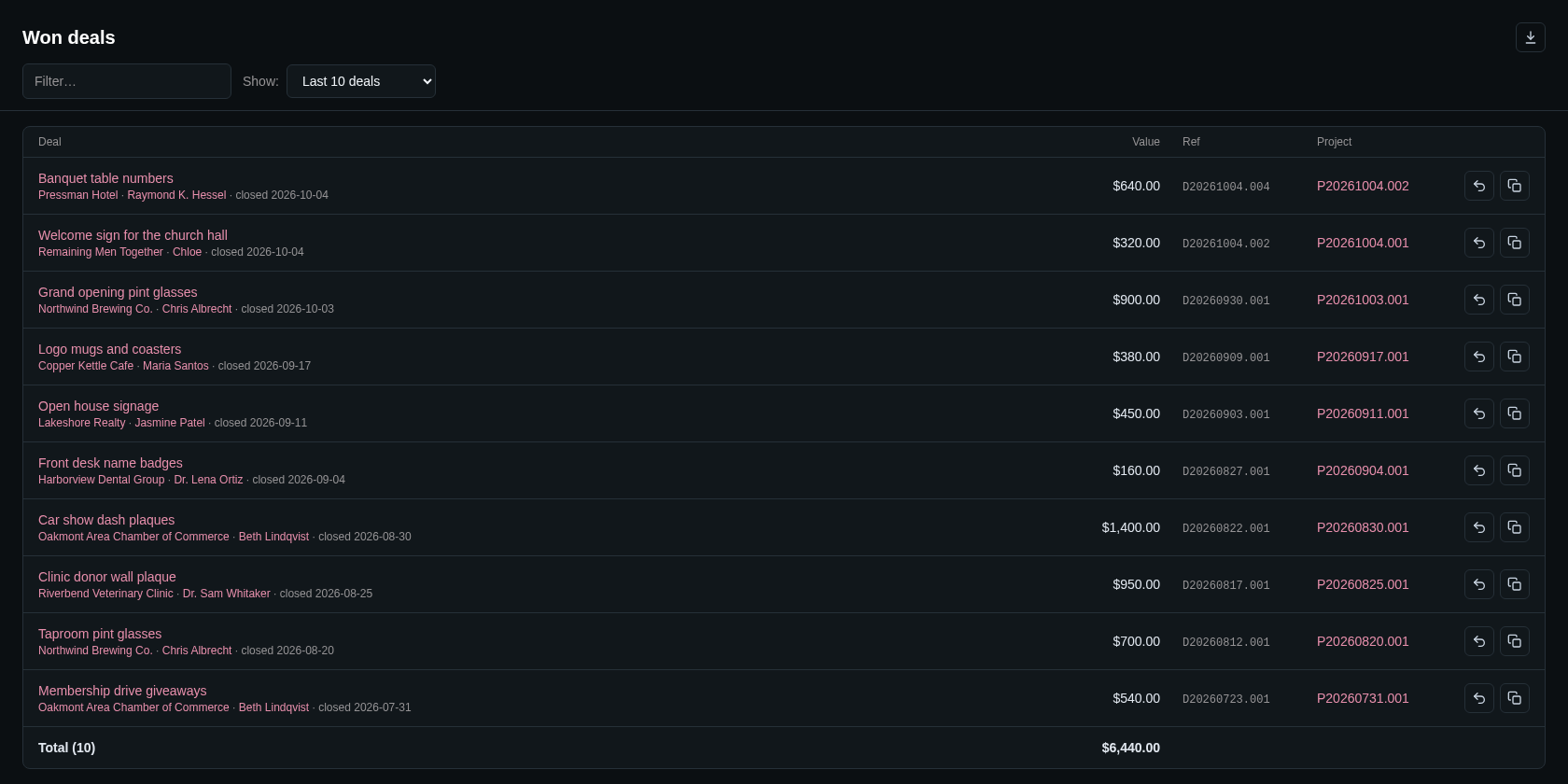
Closed deals are listed under Deals › Won, Deals › Lost and Deals › Rejected in the sidebar (with your own names for these stages). Each list shows the deal, its company or contact, the date it closed, the reason (for lost and rejected deals), its value, its reference and, for won deals, its project. A total at the bottom adds up the values.
- Filter… narrows the list by text.
- Show: picks the period: Last 10 deals, Last 90 days, Year to date, Last year or All. Your choice is remembered.
- Export to CSV downloads the rows shown.
On each row:
- Reopen (the curved arrow) moves the deal back to the first stage of the board. Reopening a won deal keeps its project.
- Duplicate as a new deal (the copy icon) creates a new deal in the first stage with the same details and a copy of its quote, and opens it. Handy for repeat orders.
The deal page
The deal page shows the deal's reference and stage in the header, the company and contact (and the project, once won), and who created and last changed it.
- Details card: edit the title, company and contact, Source, Due date, Estimated value (private), Assigned to and Description, then click Save. Saving returns you to the board or the closed list.
- Quotes card: see Quotes.
- Documents: the quote PDFs saved on the deal.
- History: every change to the deal, who made it and when.
Deleting a deal is admin-only: the trash can button on the details card. A deal that has a project can't be deleted while the project exists. An administrator can restore a deleted deal from Admin › Maintenance.
Assigning deals
Every deal can be assigned to one person; their initials appear on the card. New deals are assigned to whoever creates them. To change it, pick a person (or Nobody) in Assigned to on the deal page and click Save. When the deal is won, its project gets the same assignee.
Quotes
Quotes are built on the deal page, in the Quotes card (with the Quotes module turned on). A deal can have several versions of its quote.
Building a quote
- On the deal page, click Create quote.
- Add lines:
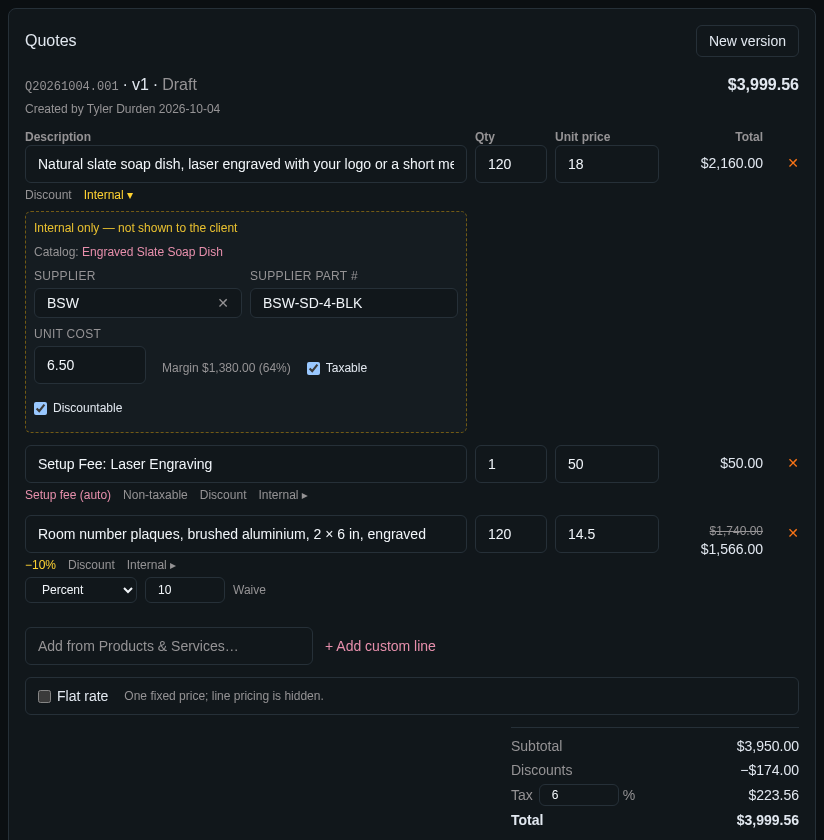
- Add from Products & Services…: search for an item and pick it. Items with variants ask which variant to add. Items with a setup fee add it automatically as a separate line marked Setup fee (auto).
- + Add custom line: type your own description, quantity and price.
- Adjust Qty and Unit price on each line. The line total updates as you type.
- Check the tax rate, Valid for (days) and Terms / notes.
- Click Save.
To remove a line, click ✕ at its end.
Discounts and waiving
Click Discount under a line to give it a discount as a Percent or an Amount, or click Waive to make it free. Discounted lines show the original price crossed out. Lines marked as not discountable have no Discount link.
Internal details
Click Internal ▸ under a line to see details that are never shown to the client: the Supplier, Supplier part #, Unit cost and the resulting margin, plus whether the line is Taxable and Discountable.
Flat rate
Tick Flat rate to charge one fixed price for the whole quote instead of line prices. Enter the Price and whether it's Taxable. The lines stay on the quote as a description of the work, without prices. The itemized value is shown for your reference only.
Tax
The tax rate starts at the default from Admin › Settings › Quotes and can be changed per quote. When the deal's company is tax exempt, the quote shows Tax (exempt) and charges no tax; a warning appears if the company has no current tax exemption certificate.
Sending and versions
- Preview shows the client-facing PDF; Download saves it. Unsaved changes are saved first so the PDF matches the screen.
- Mark as sent locks the quote and saves its PDF under Documents on the deal.
- To change a sent quote, click New version. The new version starts as a copy of the latest one, which is marked as superseded. Use the version list in the Quotes card to look at earlier versions.
- An accepted quote (after the deal is won) is locked.
- The trash can deletes a quote version. A new version that was never saved is simply discarded.
The quote PDF
The PDF carries your business details and logo, the client's details, the quote reference and version, the lines and totals, the date it's valid until and your terms and notes. It follows the date format, currency and paper size set in Admin › Settings › Regional. Internal details (suppliers, costs, margins) never appear on it.
Saved PDFs are listed under Documents on the deal with the date and who saved them. Click a name to open it, Download to save it, or the trash can to delete it (an administrator can restore it).
References
Every deal, quote and project gets a reference that never changes and is never reused, for example:
D20261001.0A7for a deal,Q20261001.0A7for a quote,P20261001.0A7for a project.
The letter shows the kind of record, the eight digits are the date it was created, and the last part tells records from the same day apart. Older records may have shorter references without the dot; they still work. Type a reference into Search… in the sidebar to find the record.