 BLP Workbench
 Sending feedback
Have a question, found a problem or have an idea for BLP Workbench? Send it to the makers of BLP Workbench right from the app.
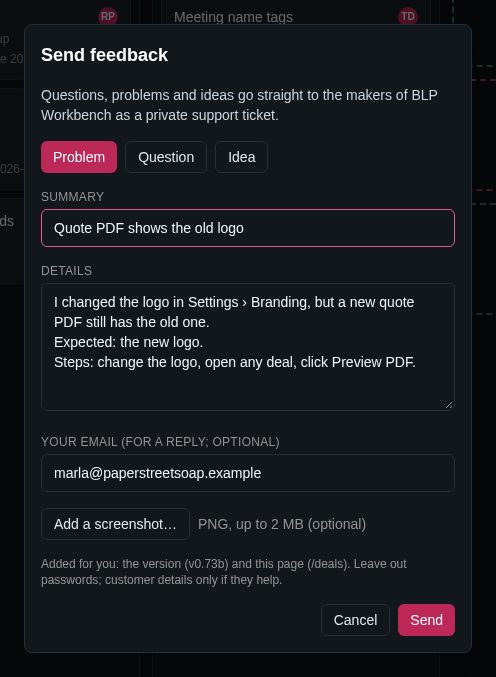
How to send feedback
- Click Feedback at the bottom of the sidebar.
- Choose what it is: Problem, Question or Idea.
- Write a short Summary.
- Fill in the Details. For a problem, describe what happened, what you expected and the steps to see it. For an idea, describe what you'd like and what it would help with.
- If you'd like a reply, enter Your email. The app remembers it for next time on this computer.
- If a picture helps, click Add a screenshot… and choose a PNG of up to 2 MB.
- Click Send.
The dialog then shows your ticket number.
What gets sent
Your feedback goes privately to the makers of BLP Workbench (Brookside Laser) at blpworkbench.com, where it becomes a support ticket. Only they see it. Two things are added for you so they can follow up:
- the version of BLP Workbench you're using, and
- the page you were on when you clicked Feedback.
Leave out passwords. Include customer names or prices only when they help explain the problem.
If BLP Workbench can't reach blpworkbench.com (for example, the server has no internet access), it says so and keeps your text in the dialog. Try again later, or copy the text and send it by email.
Each person can send up to 10 messages an hour.
Sent feedback is listed in Admin › Activity, with its ticket number.
Replies
The makers read every ticket and reply by email to the address you gave. Without an email, they can't reply. Updates that fix a problem or add an idea are listed in What's new.
What's new
To see what changed in each version, click the version number (for example v0.66b) in the footer at the bottom of any page. The changelog lists every version, newest first. See Getting started.