 BLP Workbench
 Maintenance and activity
Two admin pages for looking back: Admin › Maintenance lists everything that was deleted, so you can restore it or remove it for good, and Admin › Activity shows who changed what, and when, across the whole app.
Maintenance
Deleting something in BLP Workbench doesn't remove it right away: it's hidden everywhere in the app and listed under Admin › Maintenance until an admin restores or purges it.
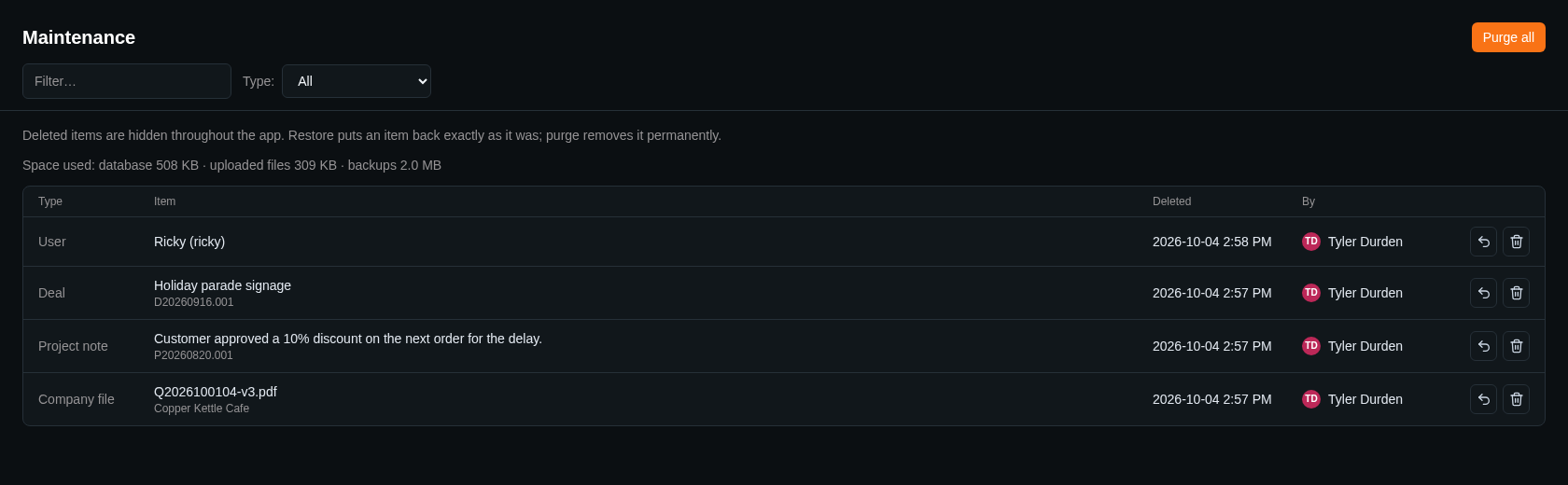
Each row shows the Type of item, the Item itself (with where it was, for example the project a note belonged to), when it was Deleted and By whom. Deleted items include companies, contacts, deals, quotes, quote PDFs, projects with their notes, files, time entries and locations, company files, products & services and their variants, stock locations, suppliers, vendors, purchase orders and users.
Finding an item
Type in Filter… to search by name, or pick a Type to see only one kind of item.
Restoring
Click the restore button on a row. The item comes back exactly as it was, in the same place. A restored user can sign in again.
A deleted project also comes back when its deal is won again.
Purging
Click the purge button on a row and confirm to remove that item permanently. This can't be undone:
- Purging a deal removes it with its quotes and history.
- Purging a company or contact removes it from the deals and projects that referred to it.
- Purging a user removes the account; their name no longer appears on records or in history. Their username becomes free to use again.
Purge all removes everything in the list permanently, after a confirmation. Consider making a backup first.
Sample data
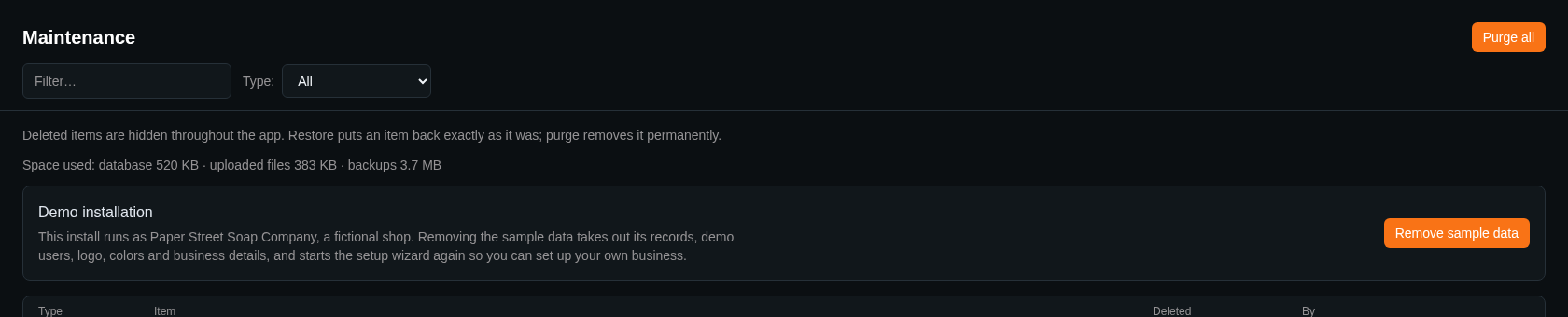
When the install has sample data from the setup wizard, a card at the top of the page offers Remove sample data. It permanently removes the sample records with their files and history, and the demo users:
- Everything you added yourself stays, except what you added to a sample record (for example a note on a sample project or a file on a sample company). A deal of your own for a sample company stays, without the company.
- On a demo installation, it also removes Paper Street's logo, colors, name and business details, and the setup wizard starts again so you can set up your own business.
- You can't remove it while signed in as a demo user; sign in with your own account.
Make a backup first if you might want the sample data back.
Space used
Under the description, Maintenance shows how much space the database, the uploaded files (logos and company, project and quote files) and the backups take on the server. When Settings › Uploads limits the space for uploaded files, the limit is shown too.
Who can delete what
Only admins can delete whole records: companies, contacts, deals, projects, products & services, suppliers, vendors and purchase orders. Anyone can remove items inside a record, such as notes, files, time entries, locations and quotes. See Admins and users.
Activity
Admin › Activity is the log of every change in the app: each record created, changed or deleted, changes to settings and users, backups and restores. The newest entries are at the top.
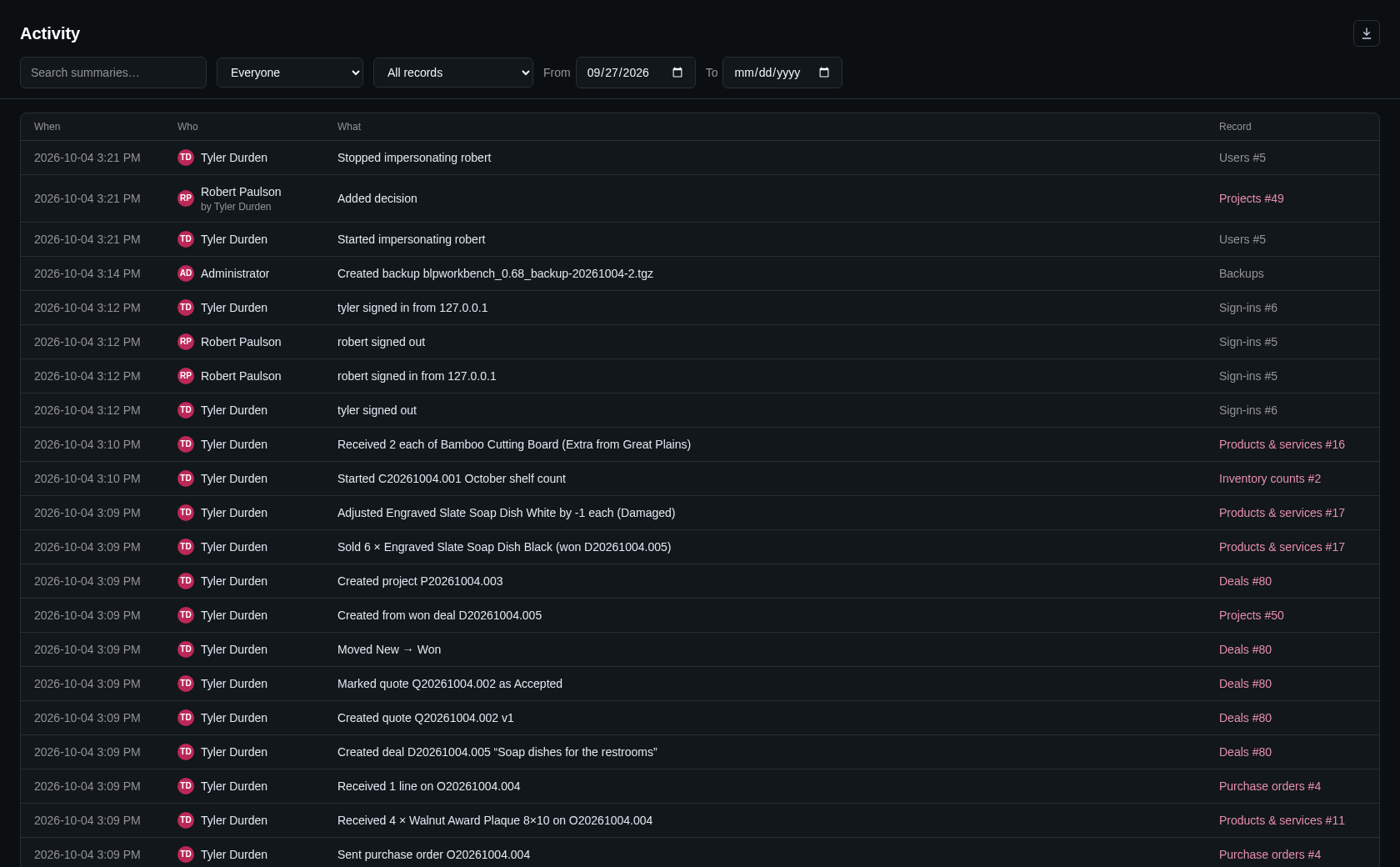
Each row shows:
- When the change was made.
- Who made it. People who are no longer active are greyed out. System marks changes the app made by itself. When an admin was viewing the app as someone else, the row reads "their name (by admin's name)".
- What was done, as a short summary.
- The Record it was done to. For deals, projects, companies, contacts, products & services, suppliers, vendors, inventory counts and purchase orders, click it to open that record.
Filtering
- Search summaries…: finds entries by the words in their summary.
- Everyone: pick one person to see only their changes. Active people come first; people who are no longer active are listed after them, marked "(inactive)".
- All records: pick a type of record, such as Deals, Users, Settings or Backups. Sign-ins lists successful sign-ins, sign-outs and failed attempts (with the username tried and the address it came from).
- From and To: limit the dates.
The page opens with From set to 7 days ago, so it shows the last week. Clear From to see everything since the start.
The list shows 100 entries at a time; click Show more at the bottom to load more.
Exporting
The Export to CSV button at the top downloads the entries that match the current filters as a spreadsheet file.