 BLP Workbench
 Products & Services
Products & Services is your catalog: the things you sell, the work you charge for and, with Inventory, the materials you keep in stock. Quote lines are built from it, so prices, descriptions and setup fees only need to be entered once.
Products & Services is a module. If you don't see it under Operations in the sidebar, an administrator can turn it on in Admin › Modules. Quotes and Inventory both need it, so it stays on while either of them is on.
The catalog list
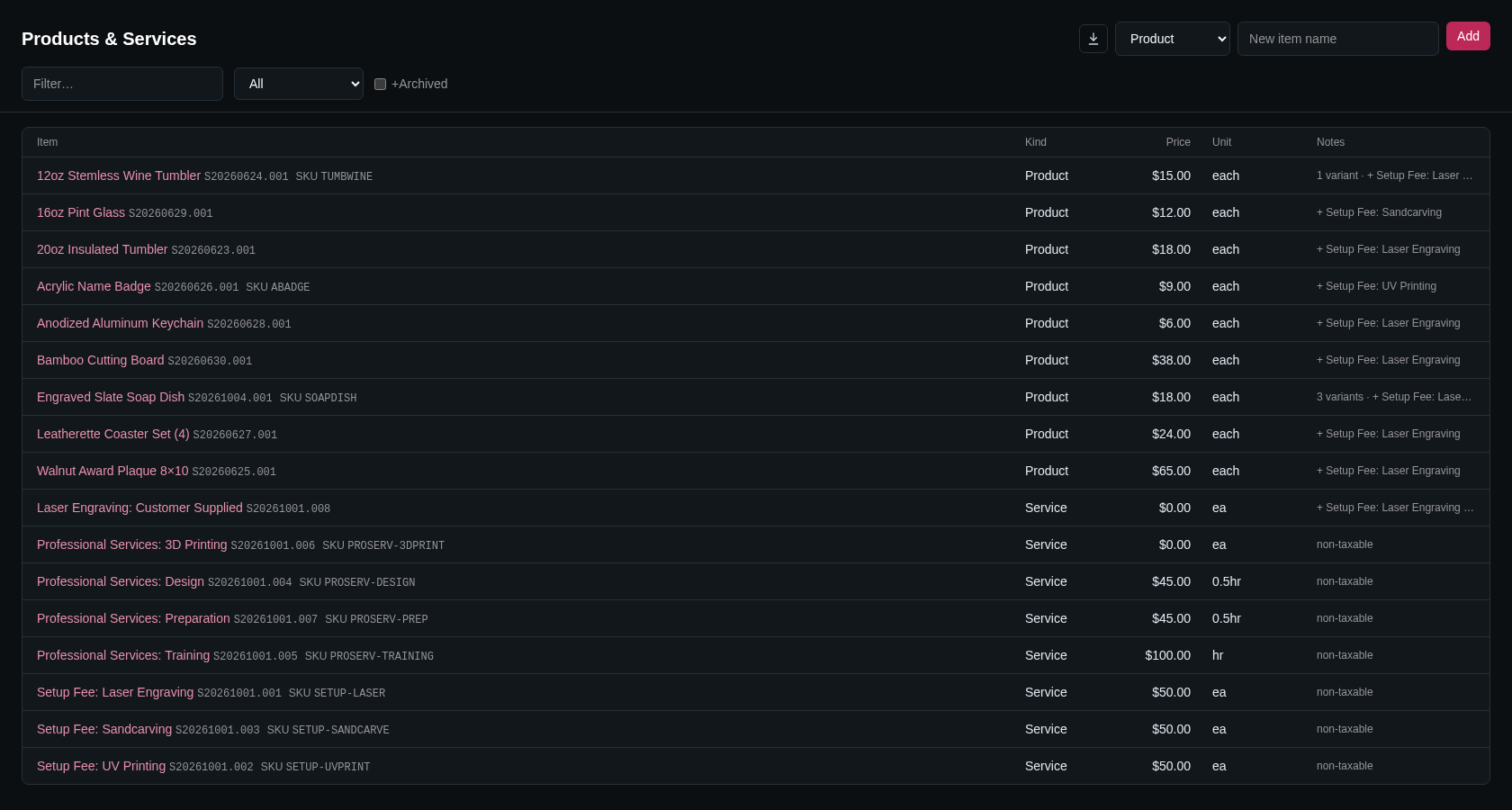
Open Operations › Products & Services. Each row shows the item's name, its stock reference and SKU, its kind, price and unit, and notes such as the number of variants, its setup fee, "non-taxable" or "no discounts".
- Filter… finds items by name, reference, SKU, description or supplier part number, including variant SKUs.
- The kind list shows All, or only Products, Services or Materials.
- +Archived also shows archived items.
- Export to CSV downloads the filtered list, including costs and supplier details.
Adding an item
On the right of the page header, choose the kind, type the name in New item name and click Add. The new item opens right away so you can fill in its details. With the name box empty, a dialog asks for the kind and name.
Kinds
- Product: something you sell, such as a finished piece or a blank you resell. Products can track stock when Inventory is on.
- Service: work you charge for, such as design time or a setup fee. Services never track stock and have no bar code label.
- Material: consumables and blanks you keep in stock but never quote, such as sheet stock or tape. Materials are only available when the Inventory module is on, always track stock, and don't appear when you add lines to a quote.
You can change an item's kind later in its Kind box.
Item details
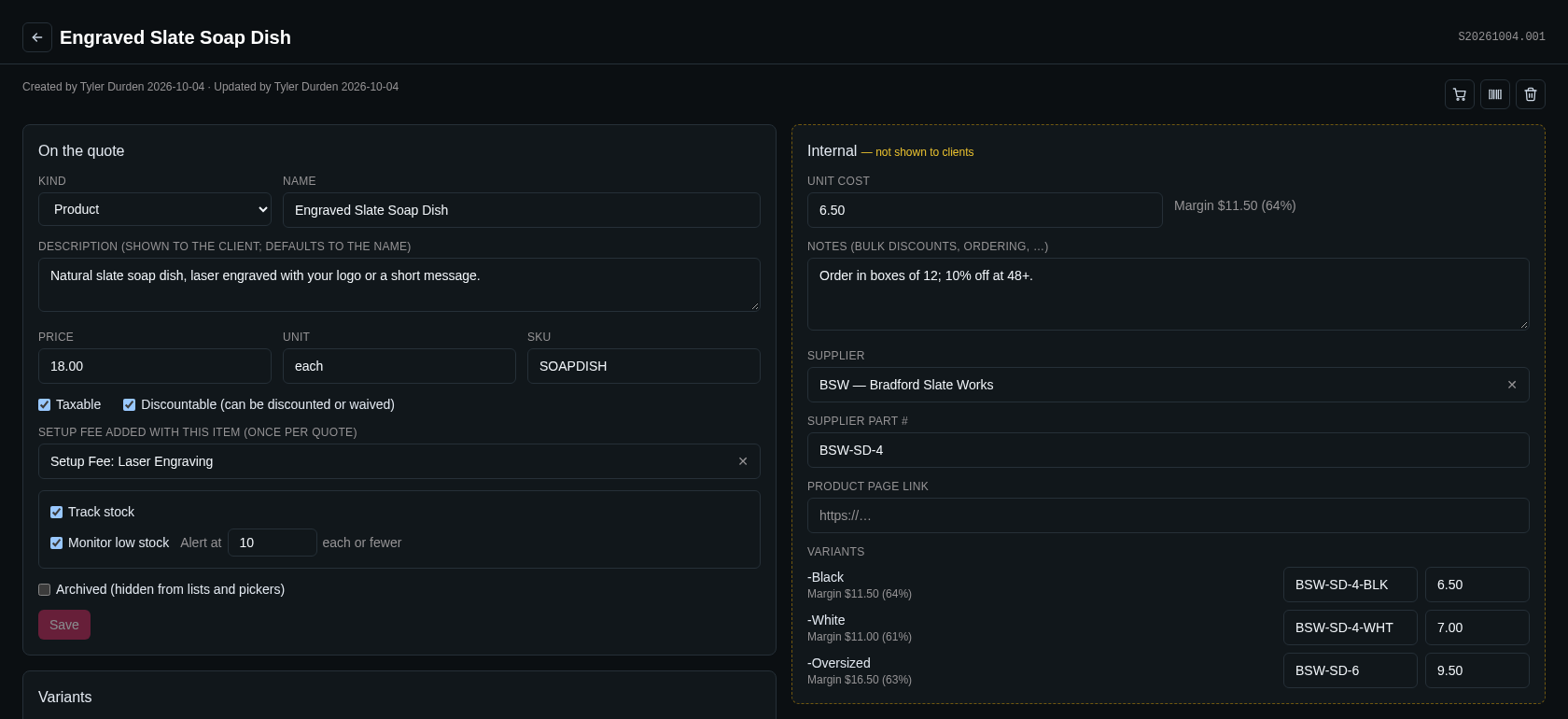
An item's page has two main cards. Click Save when you're done; the button stays greyed out until you change something.
On the quote
For products and services, this card holds what the client sees:
- Kind and Name.
- Description (shown to the client; defaults to the name): the text that goes on the quote line.
- Price: the price per unit.
- Unit: such as "each" or "hour". It's shown with quantities and on labels.
- SKU: your own product code. If another item or variant already uses the same SKU, a warning names it. SKUs can still be shared.
- Taxable: sales tax applies to this item (unless the company is tax exempt).
- Discountable (can be discounted or waived): the item's quote lines can get a discount or be waived.
- Setup fee added with this item (once per quote): a service that's added to the quote automatically the first time this item is added. See Setup fees.
- Archived (hidden from lists and pickers): for items you no longer sell. Existing quotes are not affected.
For materials the card is called Details and only has the kind, name, unit and SKU.
When the Inventory module is on, products and materials also have a stock box here. See Stock settings on an item.
Internal
The dashed card marked Internal — not shown to clients is for your own use:
- Unit cost: what one unit costs you. The Margin next to it shows the difference from the price, in money and percent.
- Notes (bulk discounts, ordering, …).
- Supplier and Supplier part #: where you buy it and their part number (only when the Suppliers module is on). See Suppliers and vendors.
- Product page link: the supplier's web page for the item. Once saved, the button next to it opens the page.
These details are copied to the internal part of each quote line, where they show the cost and margin.
Variants
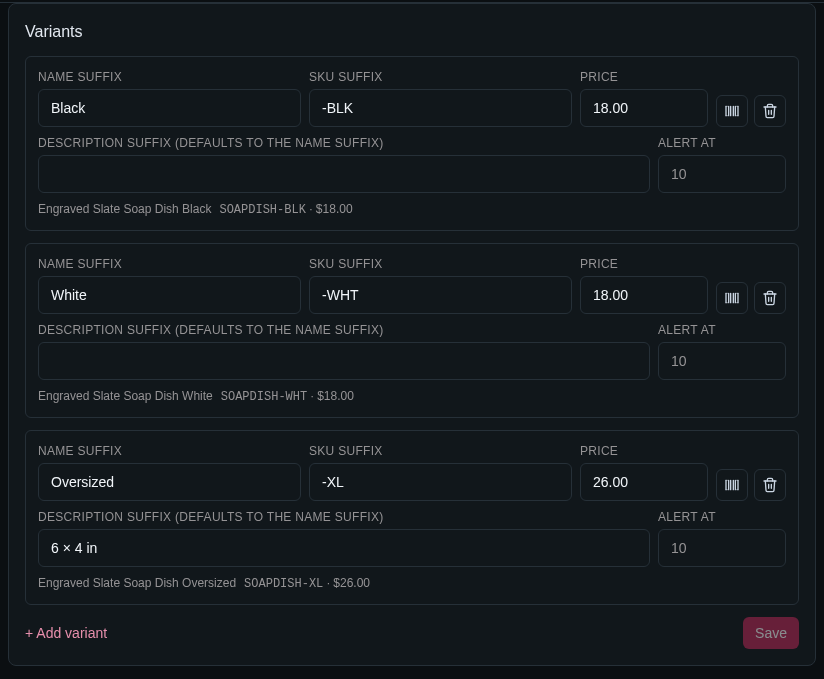
Variants are versions of one item, such as a size, a color or an "Oversized" option. Each variant can have its own price, cost and supplier part number, and is stocked separately.
In the Variants card, click + Add variant and fill in:
- Name suffix: added after the item's name, for example "Tumbler 20 oz" + "Black" = "Tumbler 20 oz Black". Every variant needs one.
- SKU suffix: added to the end of the item's SKU as typed, for example "TMB20" + "-BLK" = "TMB20-BLK".
- Price: leave it blank to use the item's price.
- Description suffix (defaults to the name suffix): added to the description on quotes.
The line under each variant previews its full name, SKU and price. In the Internal card, each variant also gets its own Supplier part # and Unit cost; blank boxes use the item's values, and the margin is shown per variant.
Click Save to keep the variants. Remove a variant with its trash button.
References
Every item gets a stock reference when it's created, such as S20261002.0A7: an S, the date it was created and a short code. It's shown next to the name on the item's page, in the list and in search results, and it's printed on the item's label. The Search… box and the Filter… box both find items by it.
A variant's bar code uses the item's reference plus the variant's number, such as S20261002.0A7-V12.
Bar code labels
When the Bar Codes module is on, products and materials have a Print bar code label button (the bar code icon) in the row under the item's name, and each saved variant has its own. The label shows the reference (encoded in the code), the name, the SKU and the price per unit.
The label dialog lets you choose the number of Copies, Include link QR code (a QR code that opens the item in BLP Workbench), and, on sheet labels, the position of the first label. Click Print. With batch printing turned on, + Batch adds the labels to your batch instead. See Labels and bar codes.
Label size and code style are set in Admin › Settings › Bar Codes.
Using items on quotes
In the quote editor on a deal, type in Add from Products & Services… and pick an item. The line is filled in with the item's description, price, tax and discount rules, and its internal supplier, part number and cost. You can still change anything on the line.
- If the item has variants, a Which variant? dialog lists the item and each variant with its price. Pick one. The quote line remembers the variant, which matters for stock when a deal is won.
- Materials are not listed, since they're never quoted.
- + Add custom line adds a line that isn't in the catalog.
Changing an item's price later doesn't change existing quotes. See Deals and quotes.
Setup fees
If an item has a setup fee, adding it to a quote also adds the fee line, marked Setup fee (auto). The fee is added only once per quote, however many items call for it. Removing the last item that needs the fee removes the fee too, unless you've edited the fee line yourself.
A setup fee must be a service.
Stock settings on an item
With the Inventory module on, products and materials have a stock box in the main card:
- Track stock: keep a stock quantity for this item. Materials always track stock. Administrators can make new products track stock by default in Admin › Settings › Inventory.
- Monitor low stock and Alert at: the item appears on the Low Stock card when it has this many units or fewer. Each variant can have its own Alert at; blank uses the item's.
After saving, a Stock card at the bottom of the page shows the quantity on hand (per variant and location), buttons to receive, adjust and move stock, and the item's recent stock changes. With purchase orders on, the cart button (Add to purchase order) puts the item on a draft purchase order. See Inventory.
Deleting an item
Only administrators can delete an item, with the trash button in the row under its name. It's hidden from the catalog, but existing quote lines keep their text and prices, and an administrator can restore it from Admin › Maintenance.
To stop using an item without deleting it, check Archived.
History
The line under the item's name shows who created it and who last changed it. The History card at the bottom lists every change.